
1
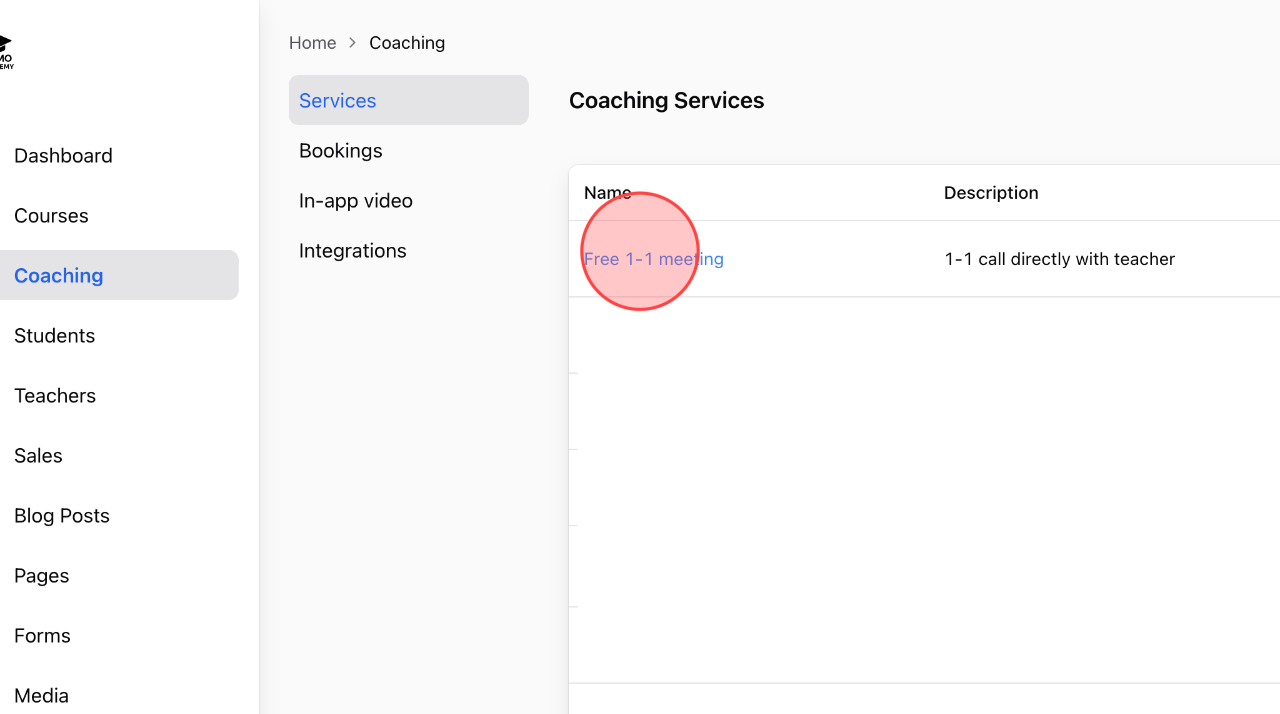
In the Services list under the Coaching section, click on the service name you want to configure its details. (E.g, Free 1-1 meeting)
2
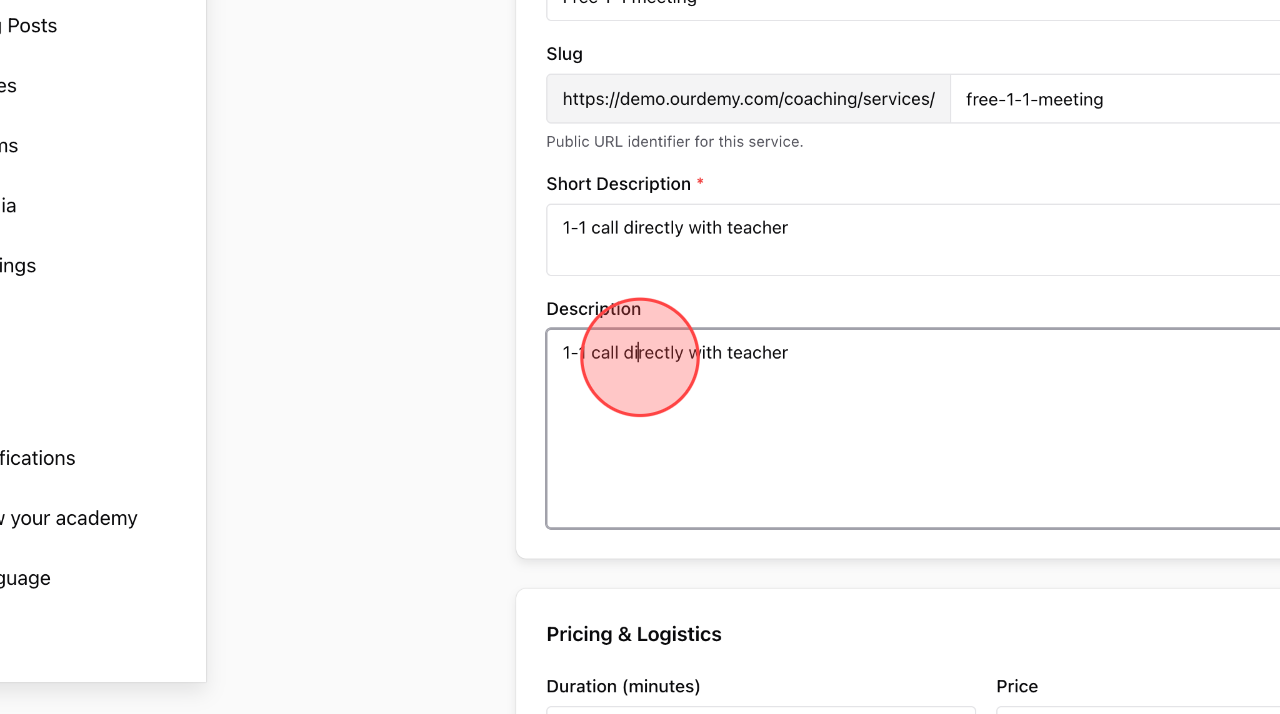
Enter the service description in this field.
3
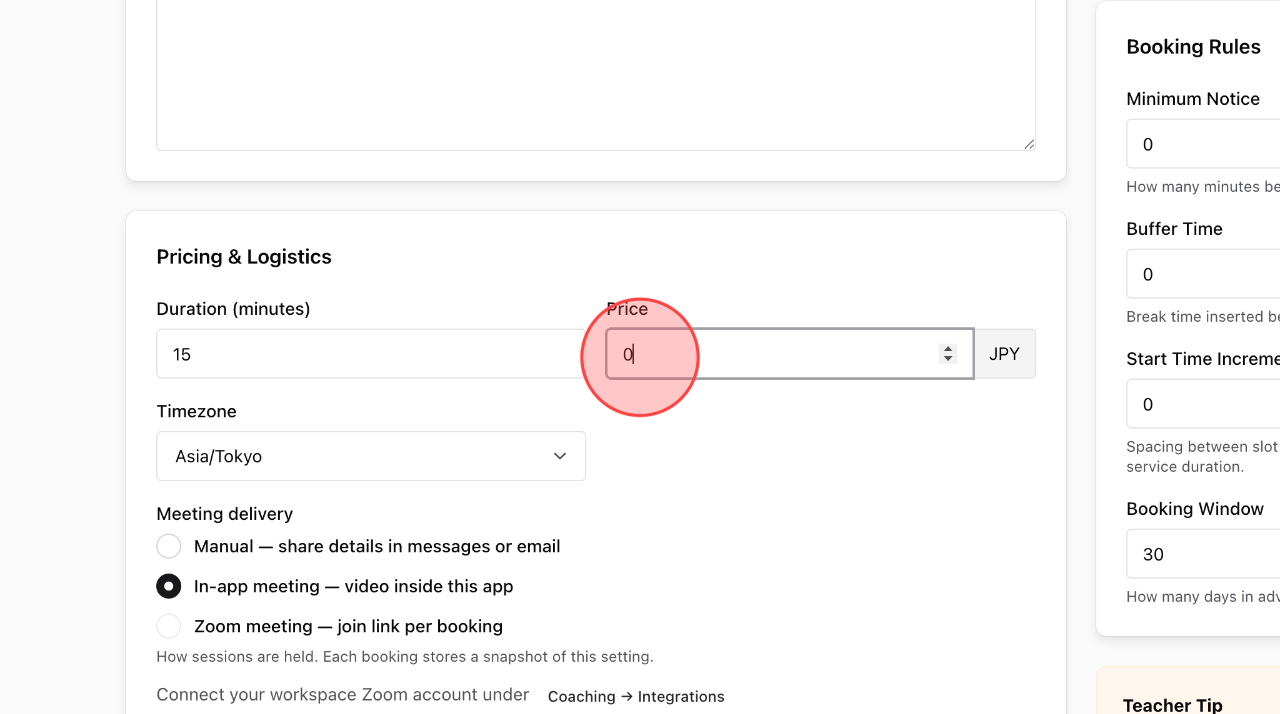
Set the price for the service in this field. You can either enter a number directly or use the arrow icons to adjust it to your desired amount.
4
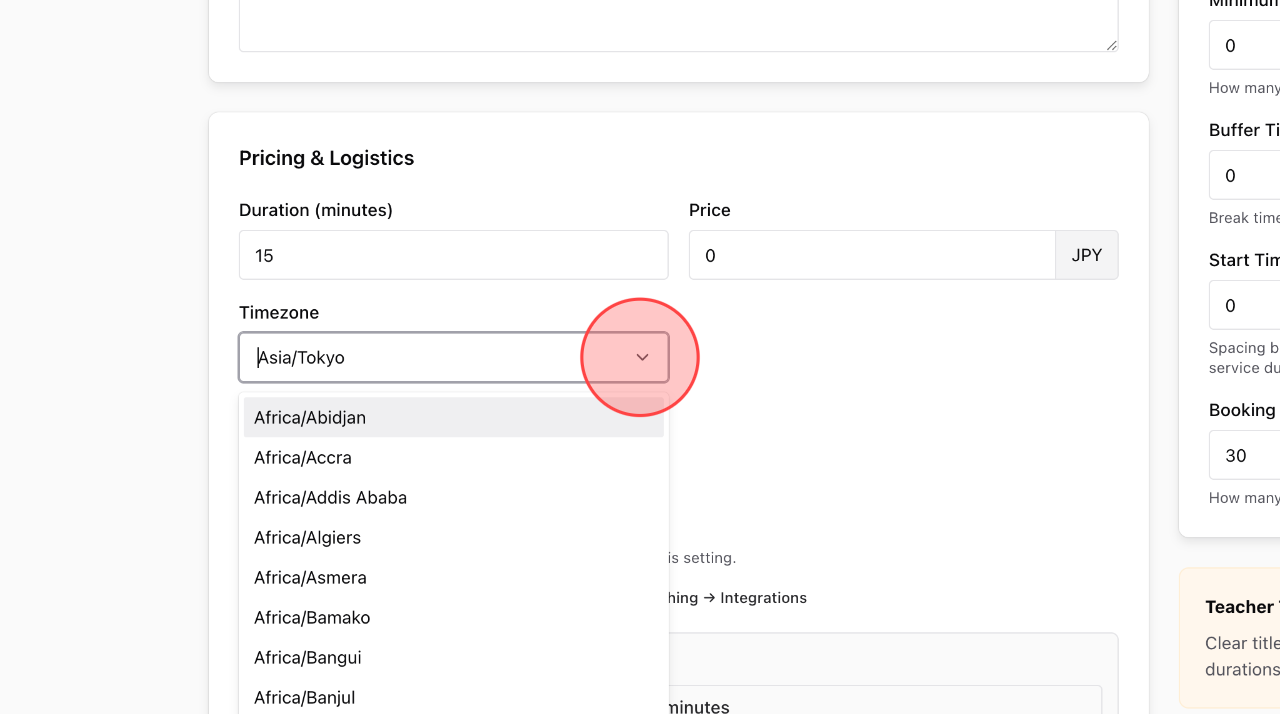
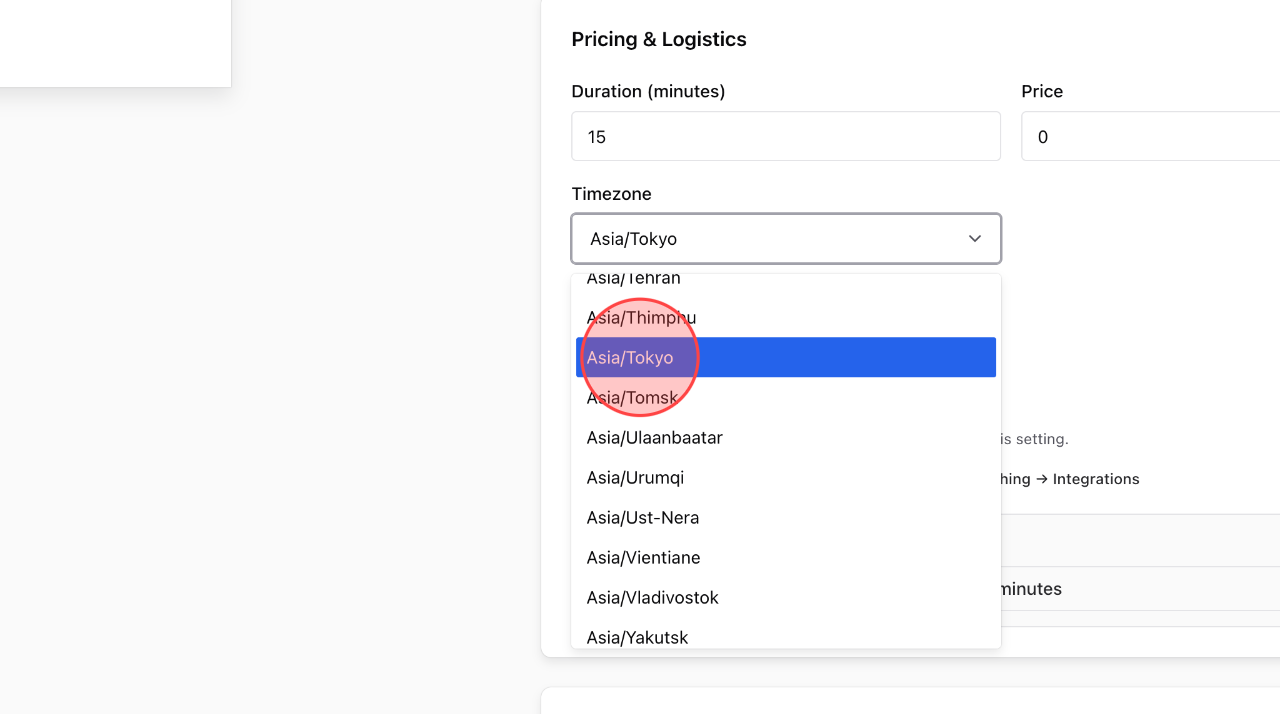
Click the dropdown icon to open the list of available timezones.
5
Scroll to find and click the appropriate timezone to complete this setting. E.g, Asia/Tokyo
6
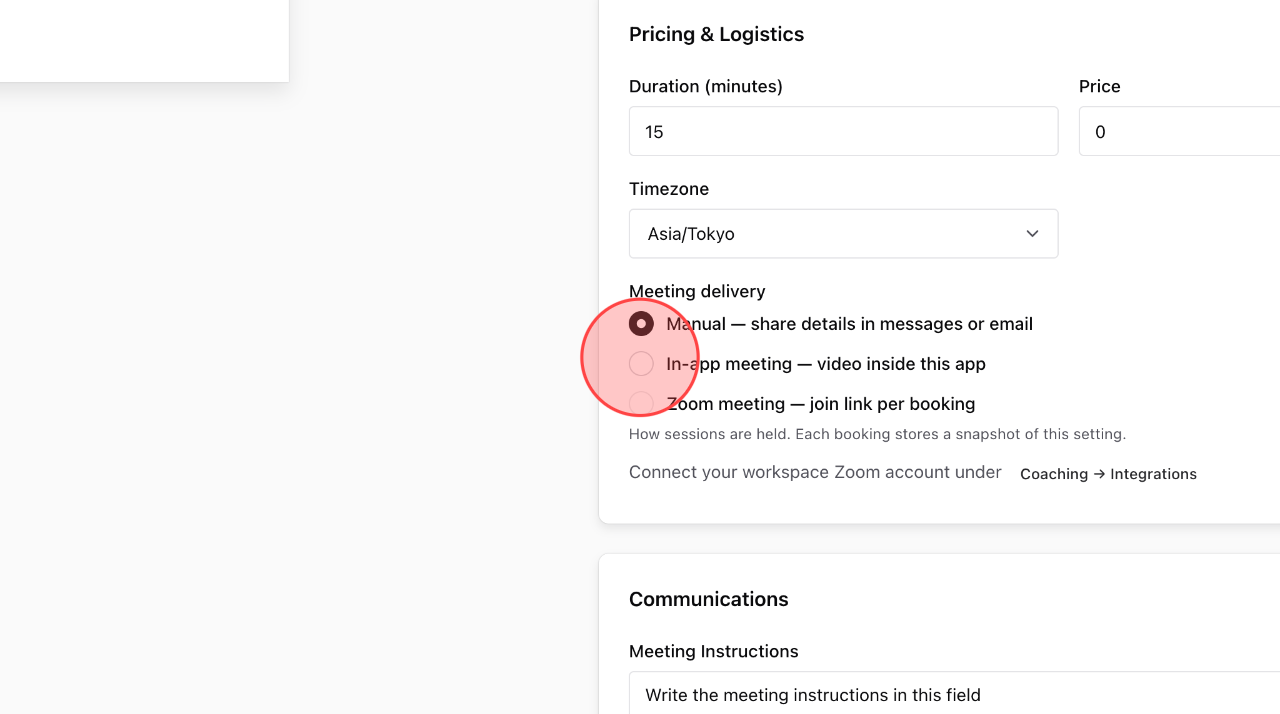
To set up meeting delivery, click the checkbox next to the option you want to select. Note: – For In-app meeting, you need to purchase minutes balance to use this feature. – For Zoom meeting, you must first integrate Zoom into the system.
7
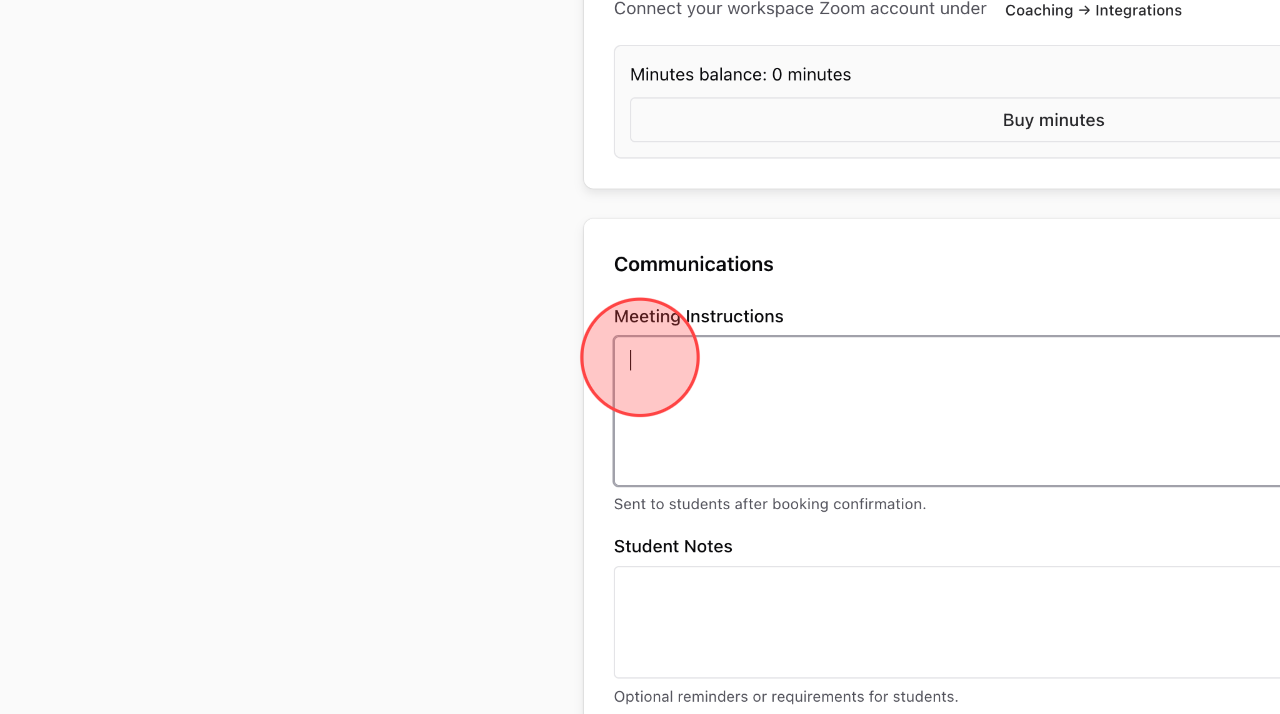
Optional: Enter Meeting instructions in this field.
8
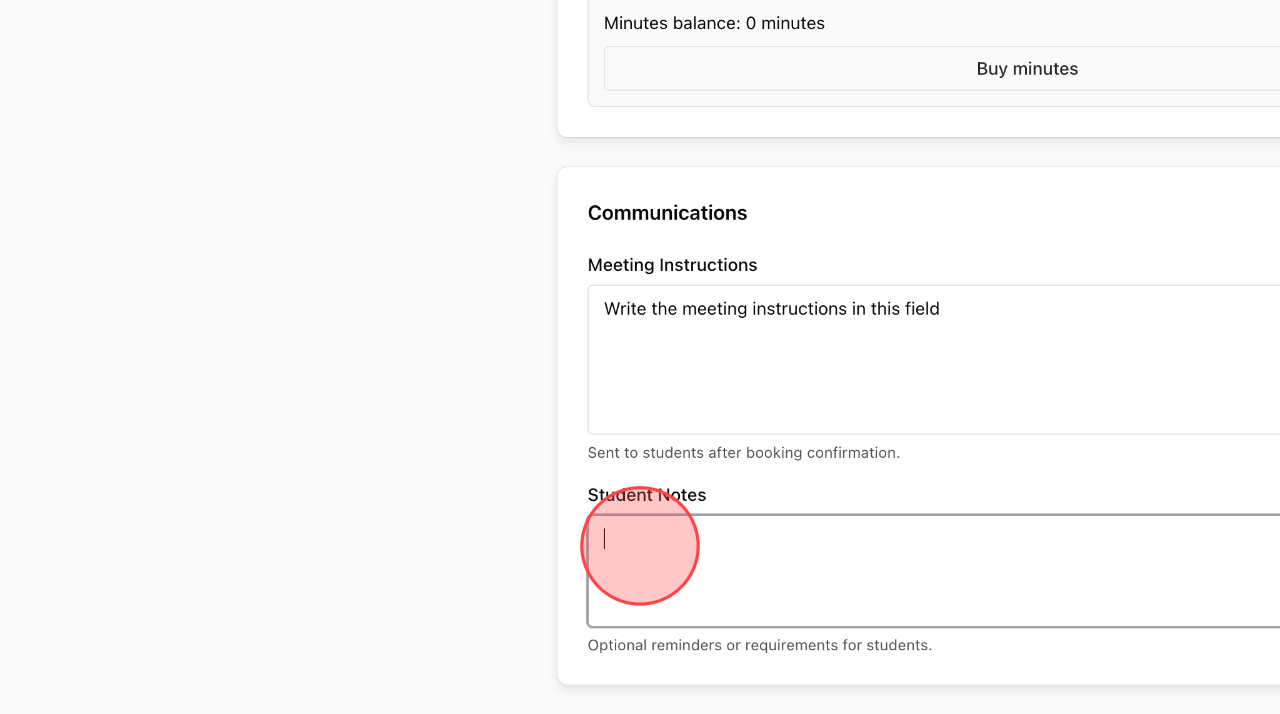
Optional: You can enter reminders or requirements for students in the Student Notes field.
9
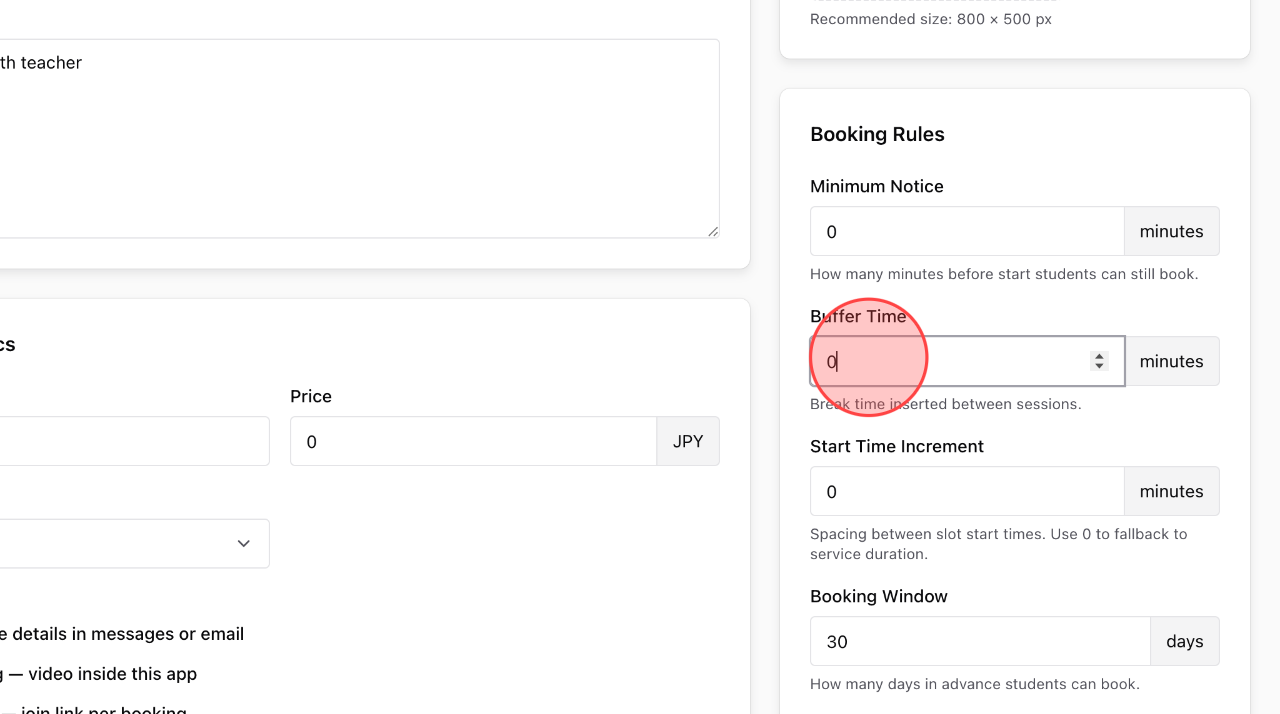
The settings in the Booking Rules section are also optional. You can customize them or use the system defaults. These include: – Minimum Notice – Buffer Time – Start Time Increment – Booking Window
10
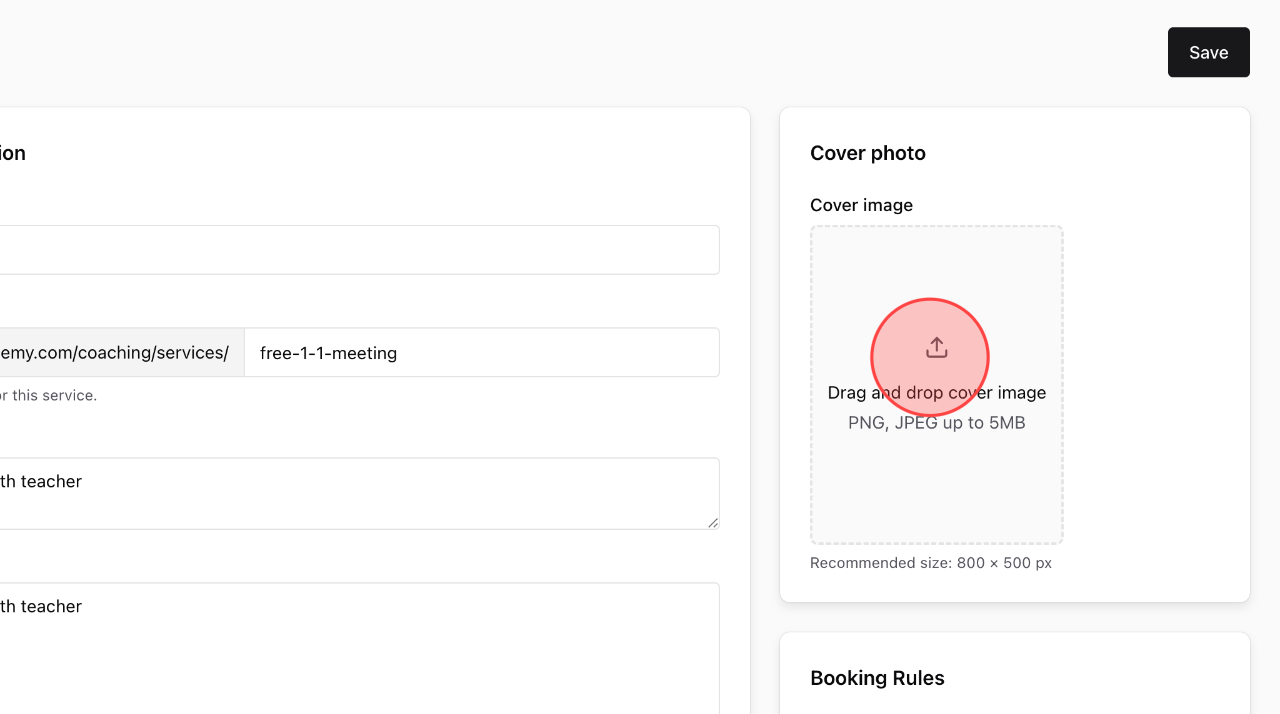
Drag and drop or upload an image in this field to set it as the service’s cover image.
11
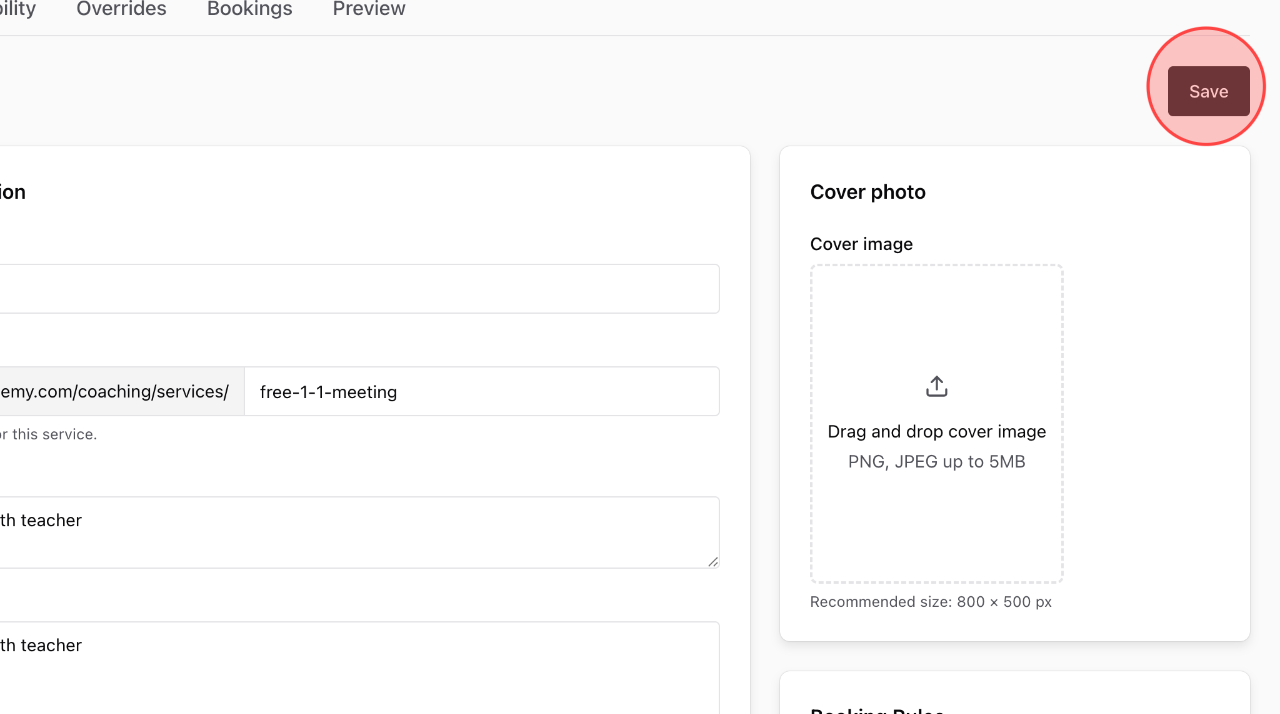
Click Save to save your changes.
 English
  日本語
日本語