
1
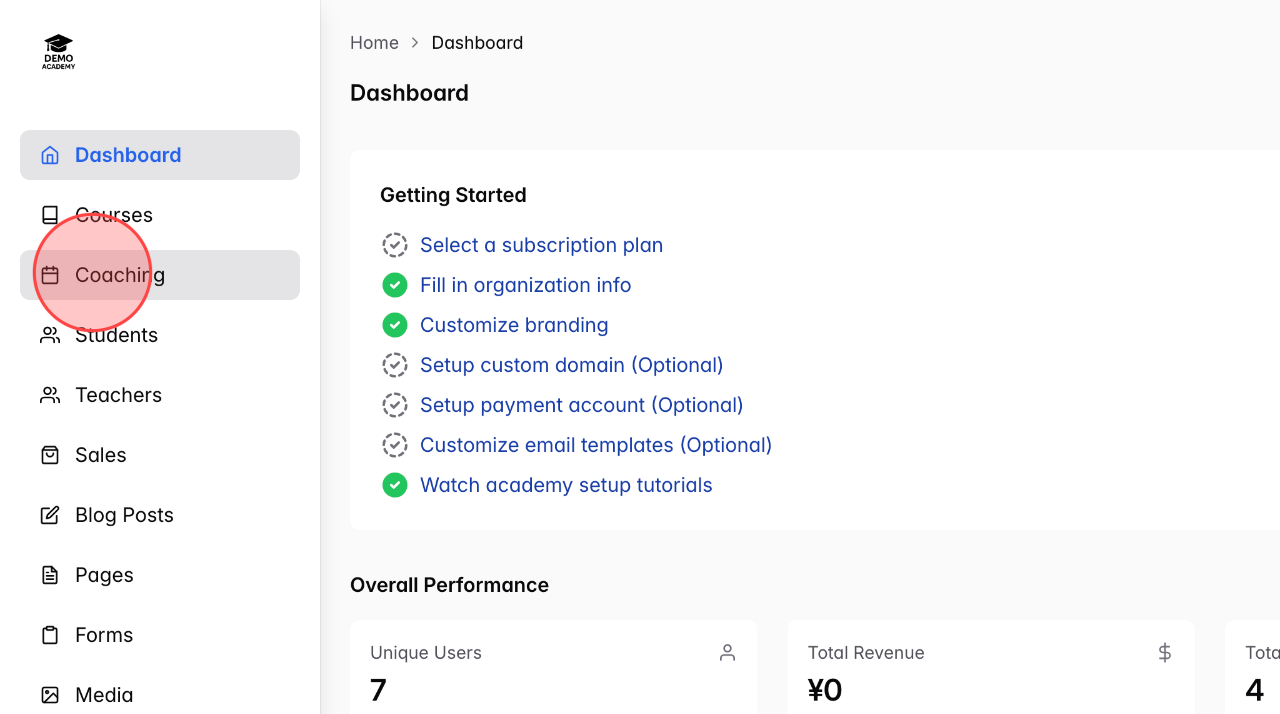
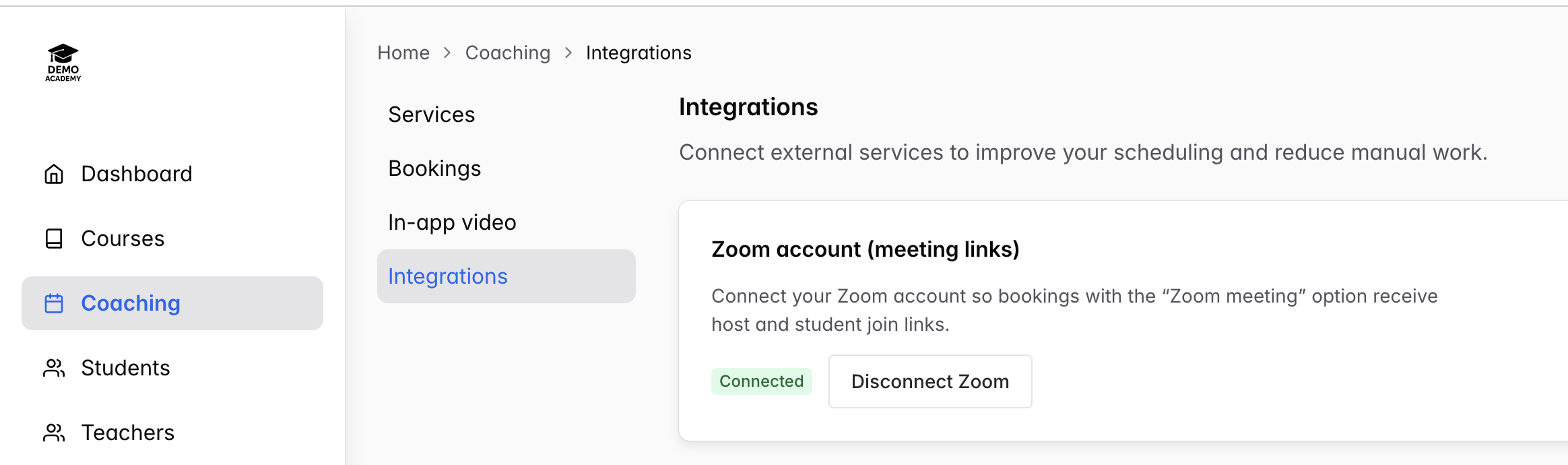
From the Admin Dasboard, click Coaching to open the coaching menu.
2
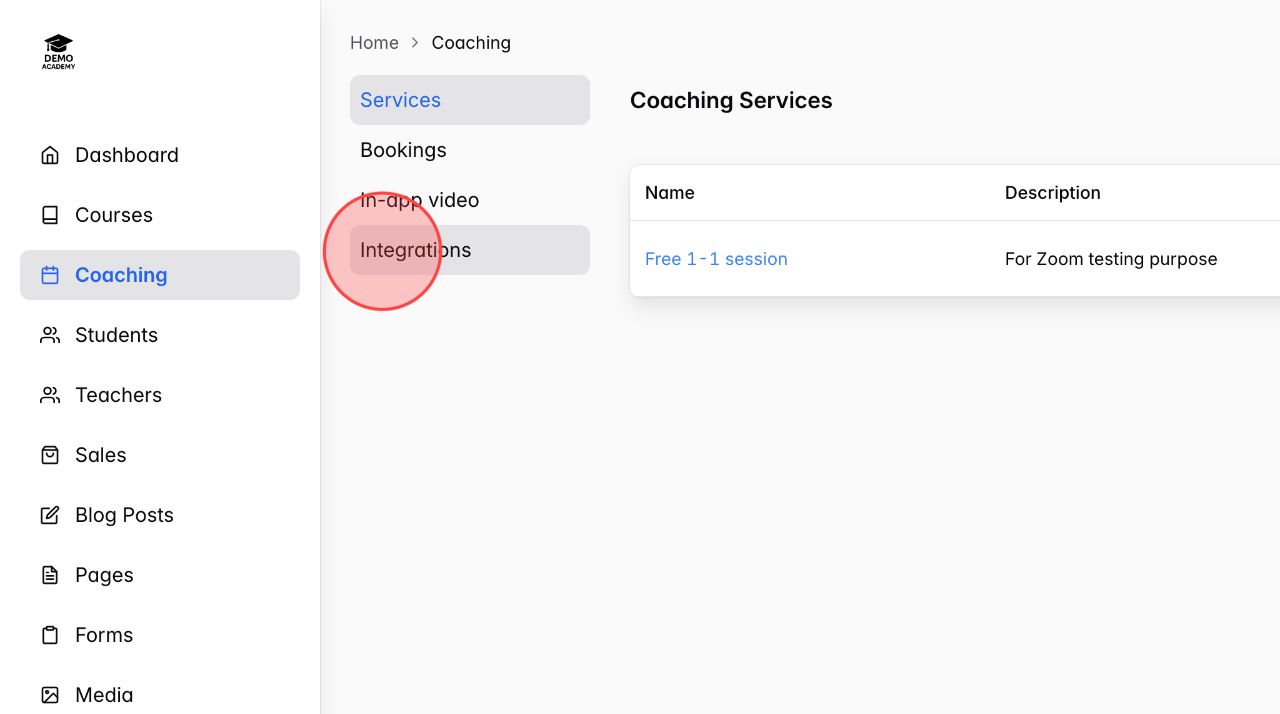
Click Integrations to start integrating other software and platforms, such as
Zoom, into the system.
3
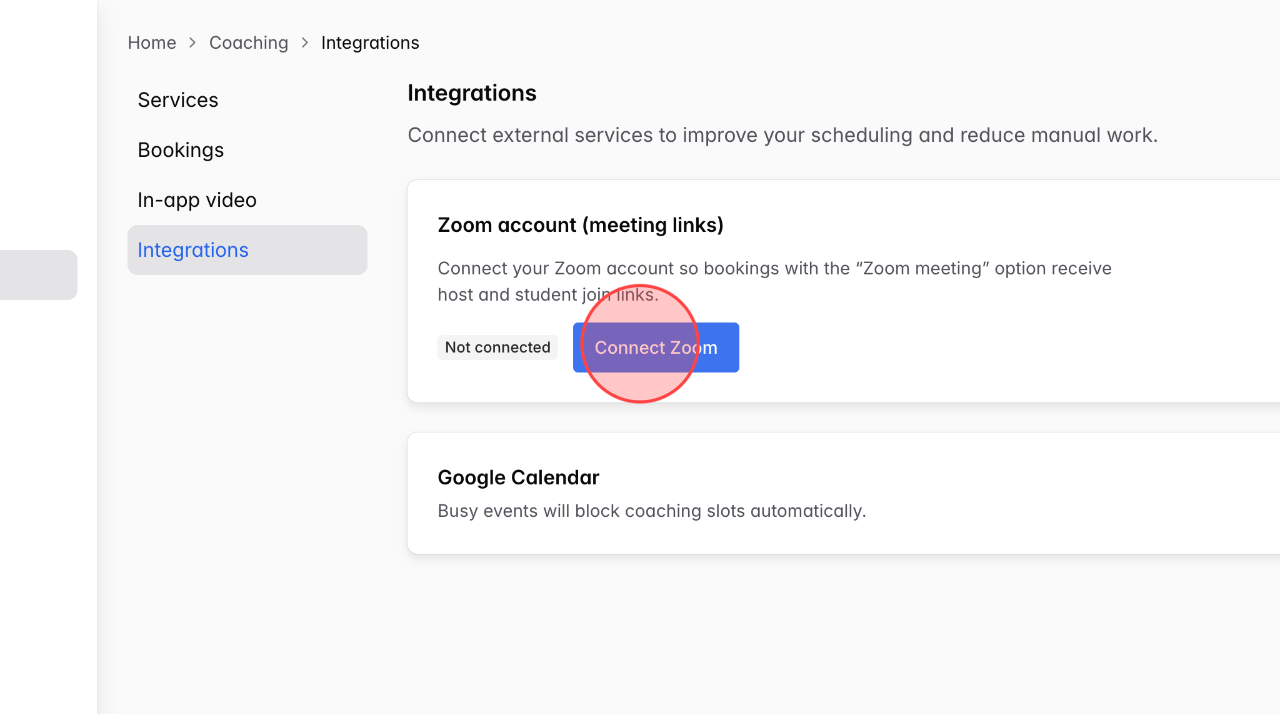
Click Connect Zoom to start connecting.
4
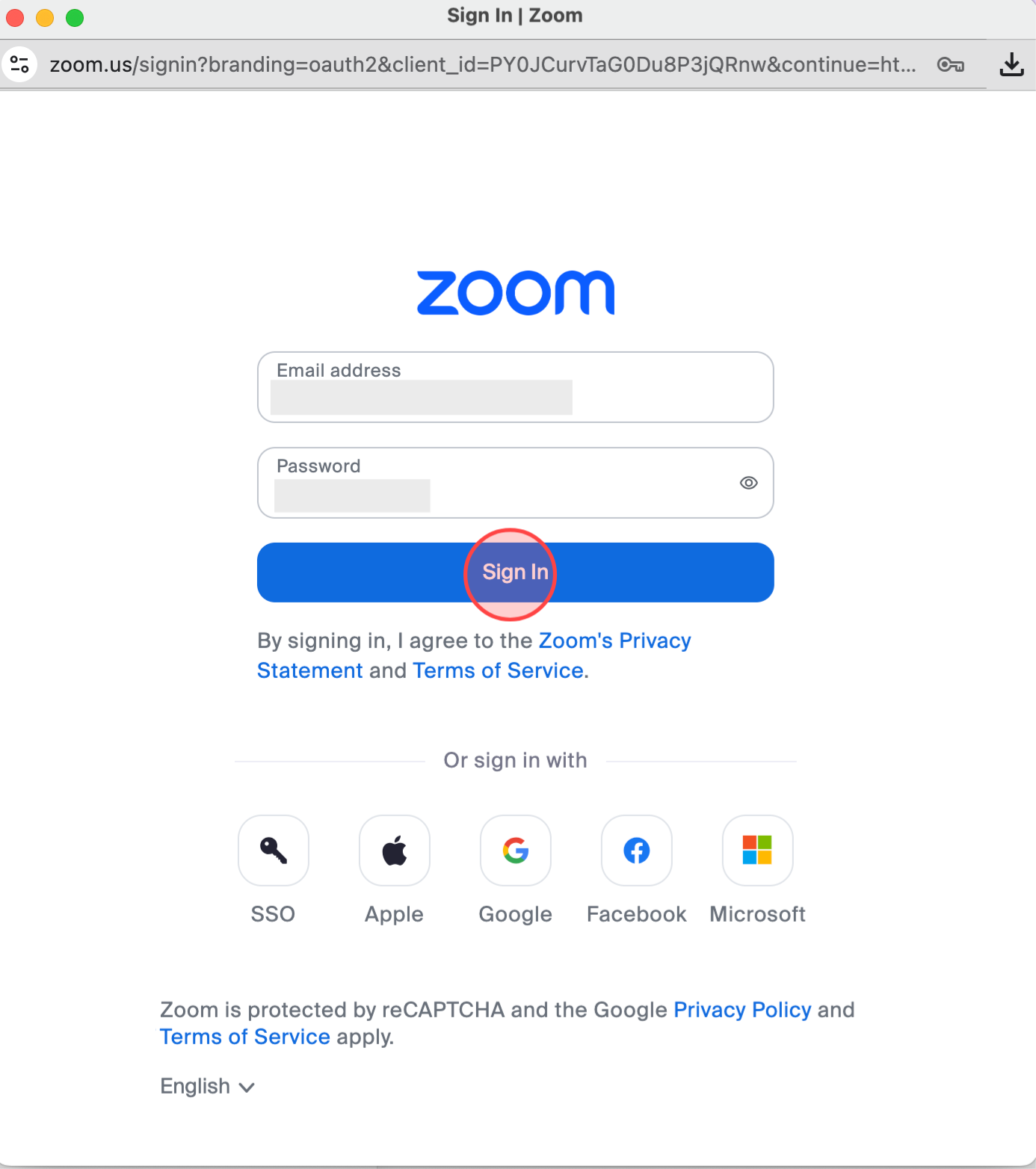
Enter your Zoom account login details in the corresponding fields, then click Sign in to complete the process.
Note: The Zoom account email must match the admin/teacher account email to ensure proper synchronization.
5
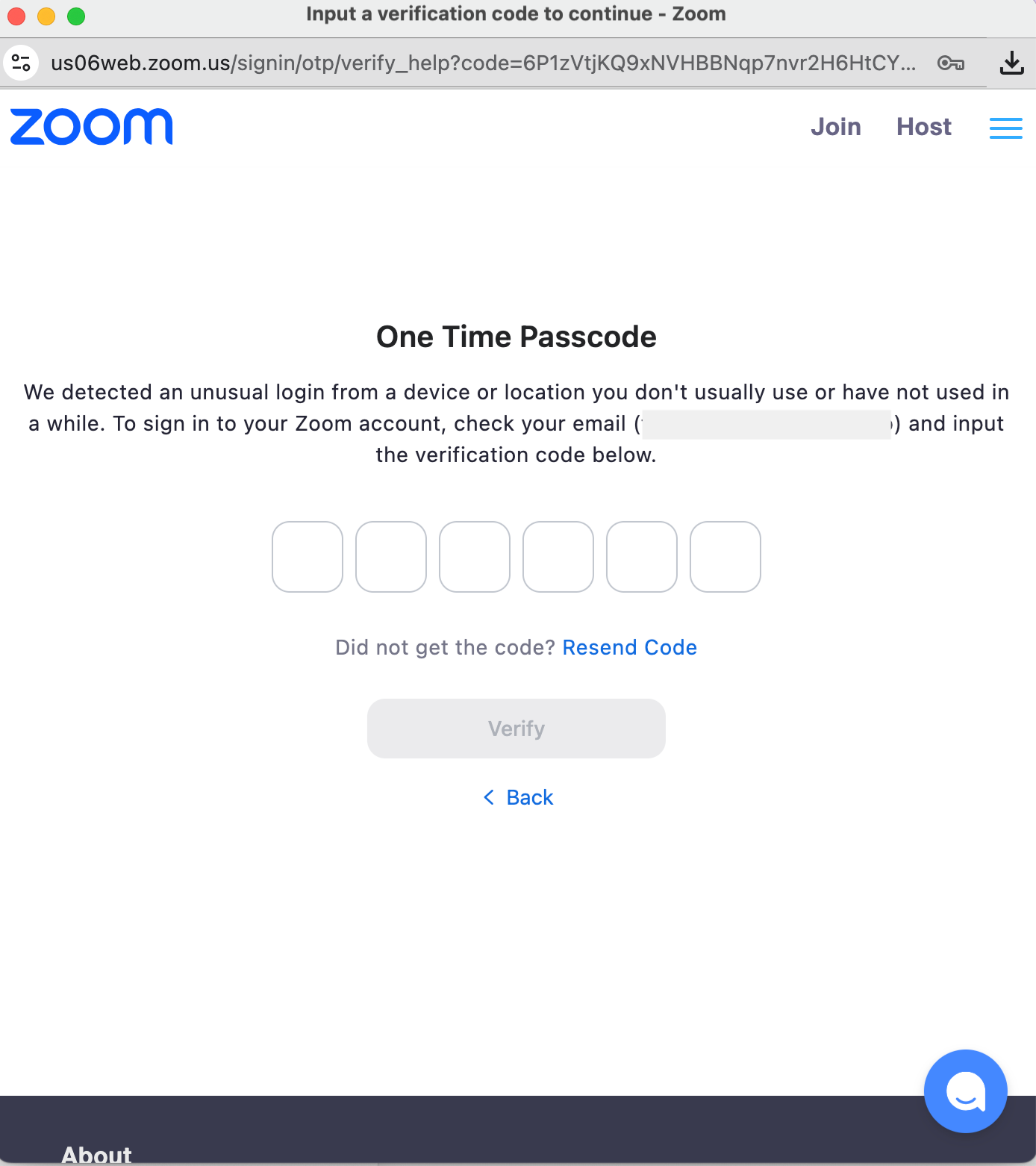
After successfully signing in, Zoom will prompt you to enter a passcode to verify your account.
6
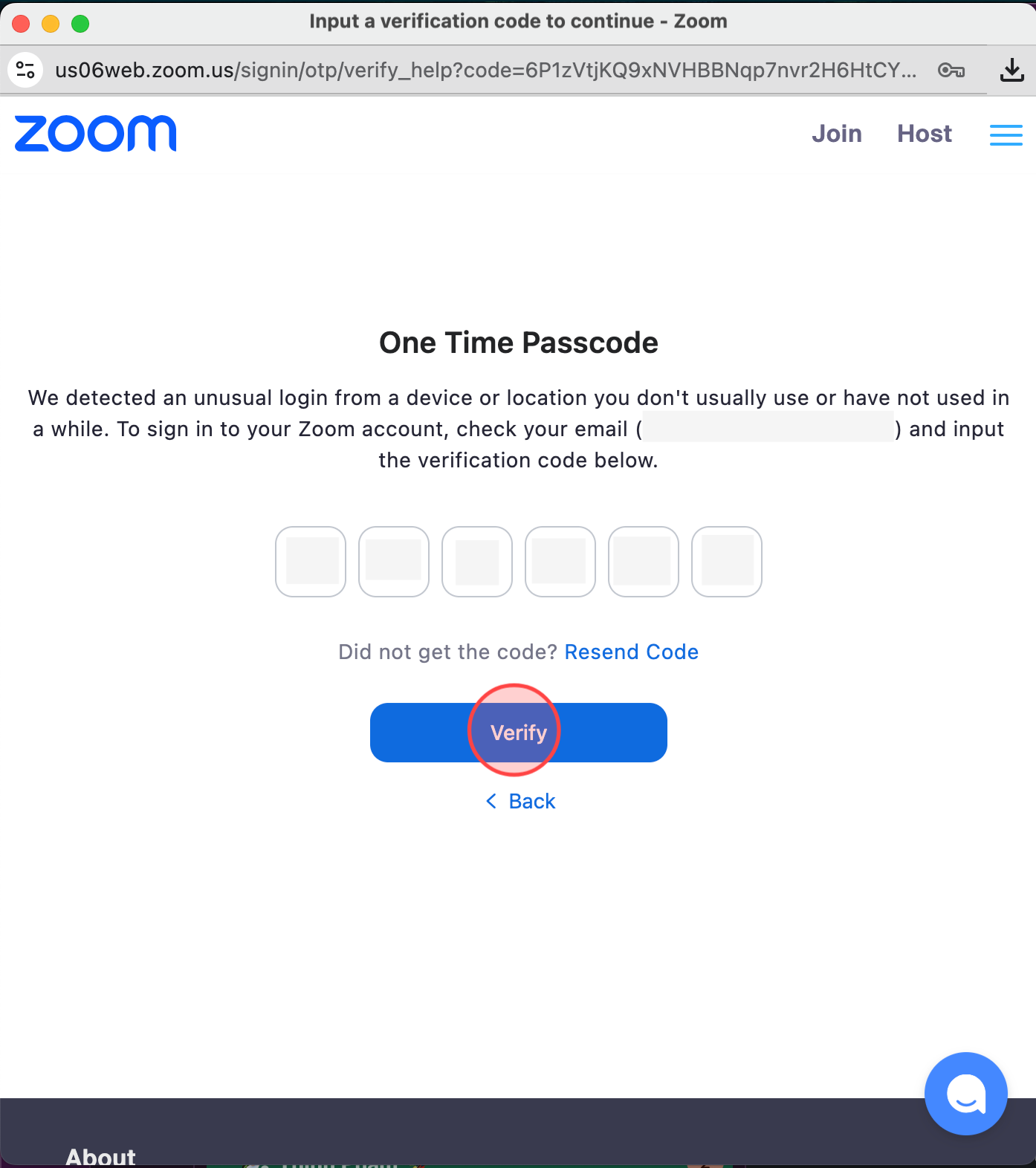
Check your email, copy the passcode, enter it into the fields below, and click Verify to complete the process.
7
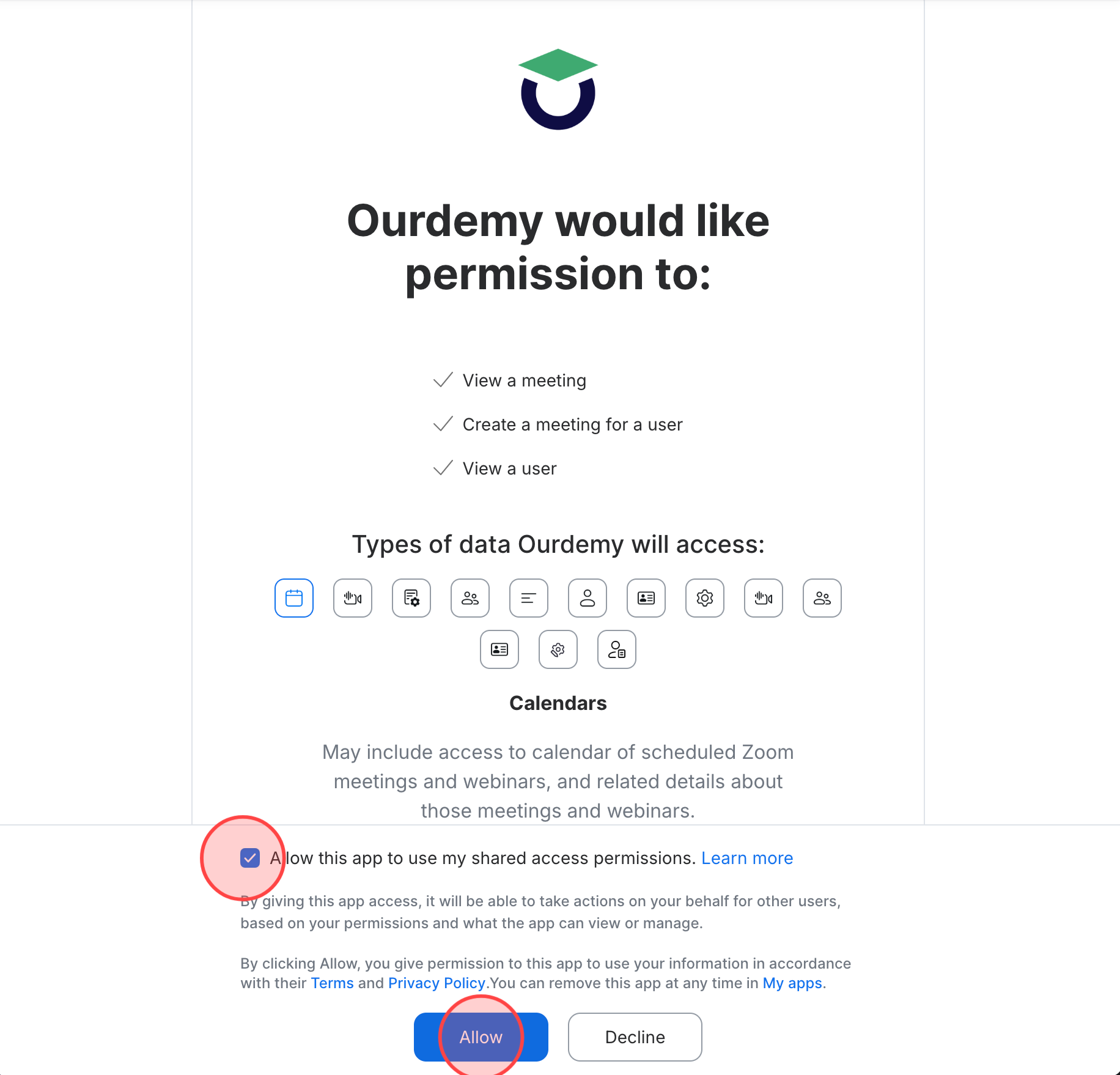
Click on input Allow this app to use my shared access permissions. And click Allow button to complete.
8
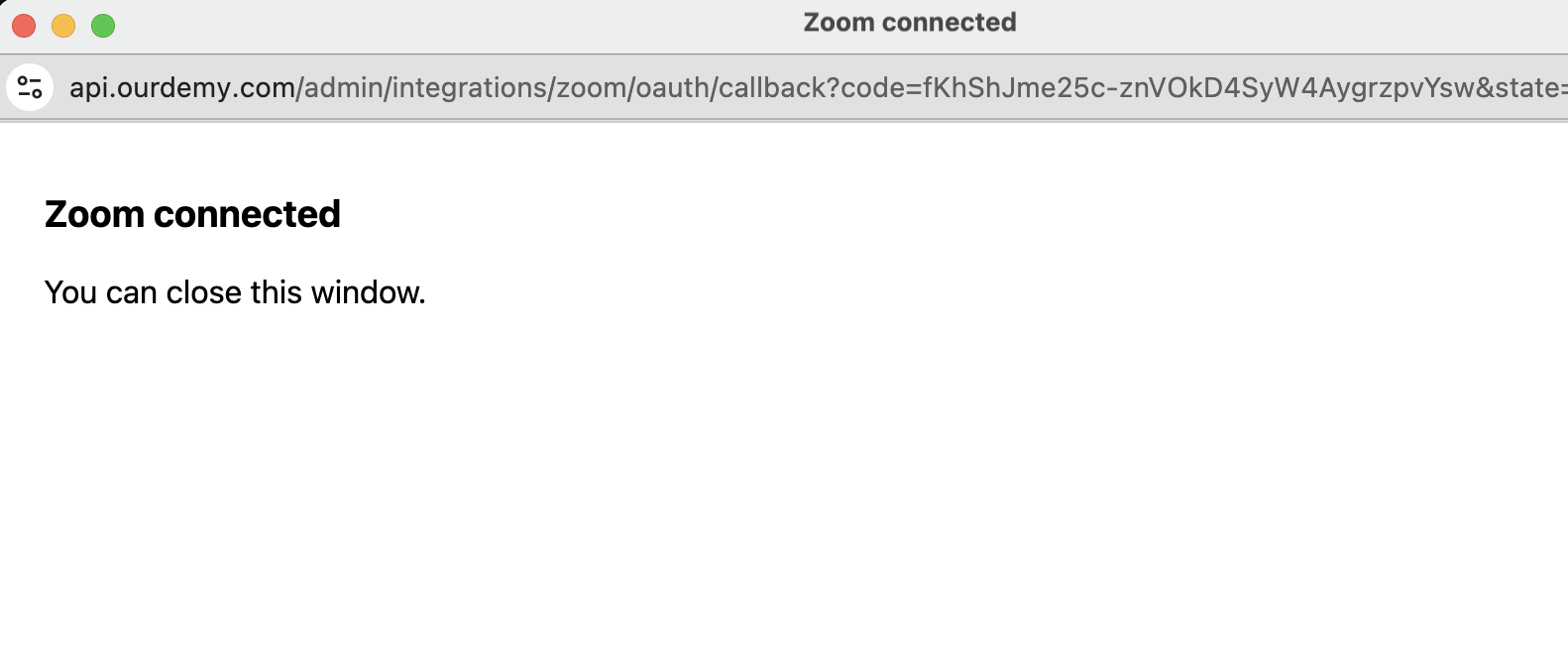
At this point, the Zoom system will display the status Zoom connected, indicating that the connection has been successfully completed.
9
The system screen will display the status Connected.
 English
  日本語
日本語