
1
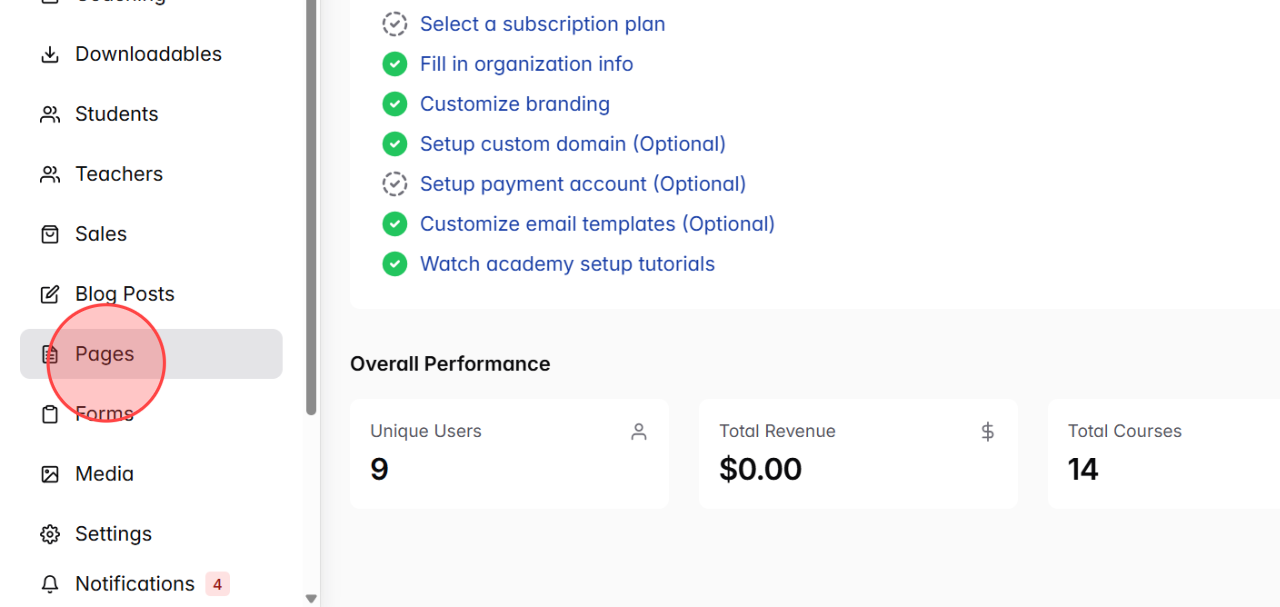
From the admin dashboard, go to the Pages section to open the list of all created pages.
2
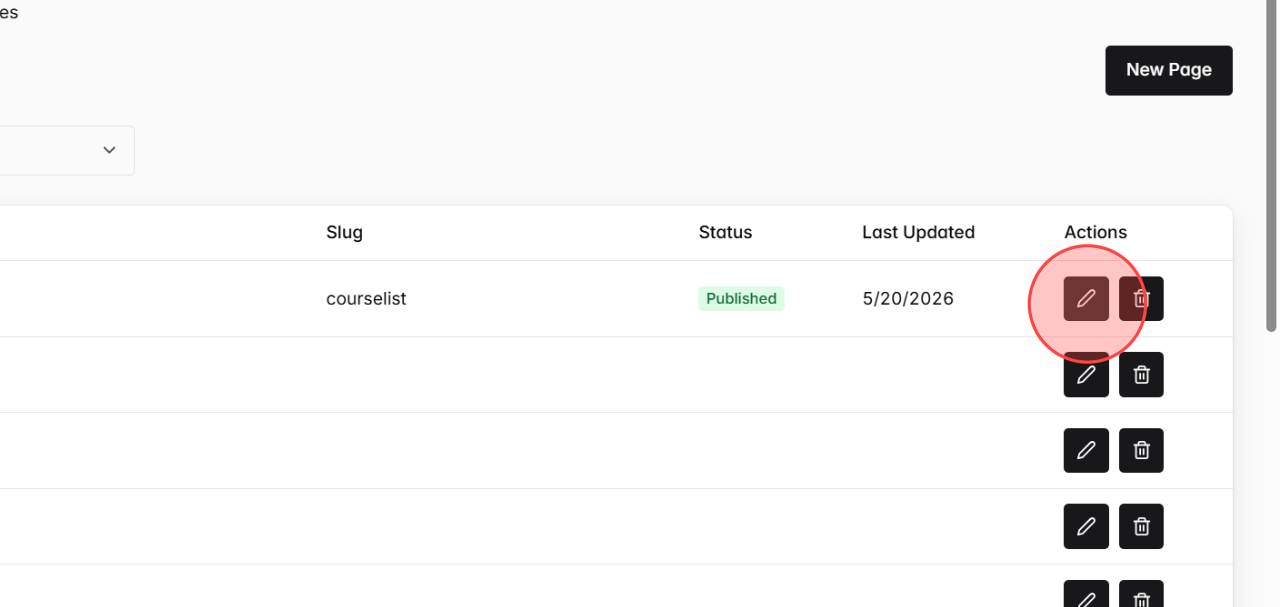
Find and select the page where you want to apply a different page style from the global style settings.
3
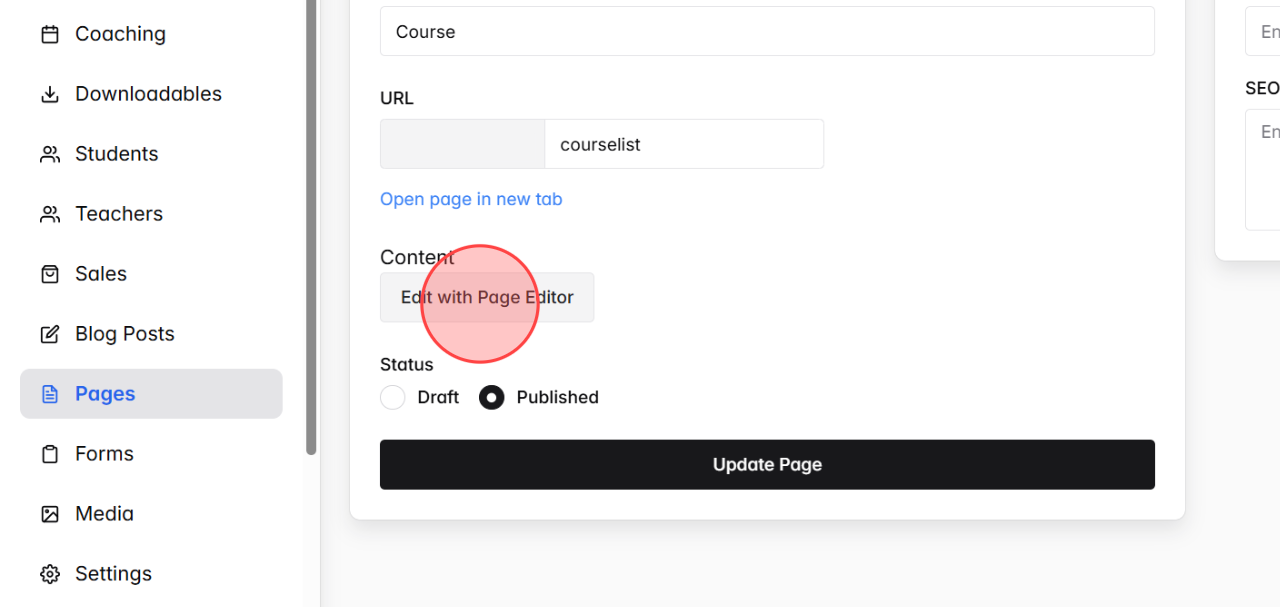
On the page details screen, click the Edit with Page Editor button to open the page editor.
4
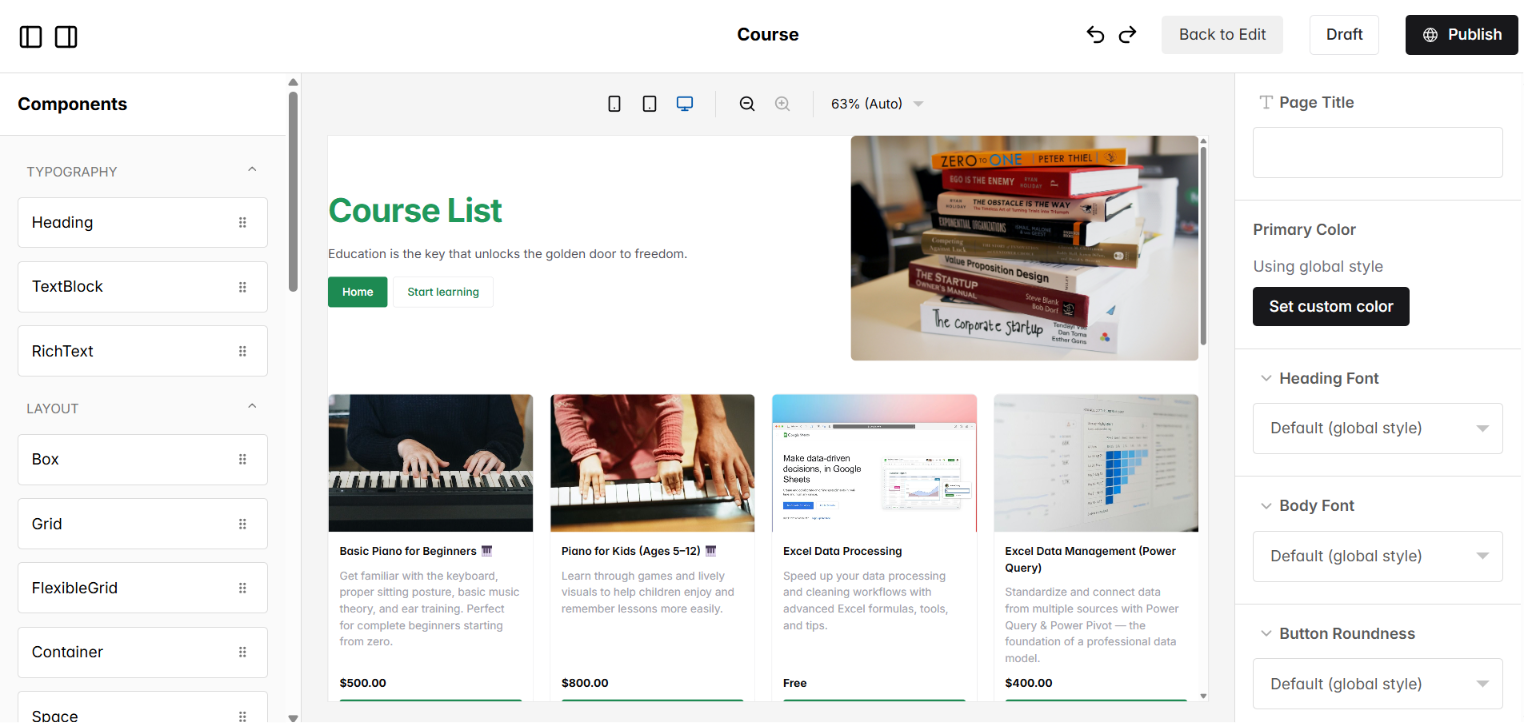
After entering the Page Editor, the left-side panel will display all customization settings available for that page.
5
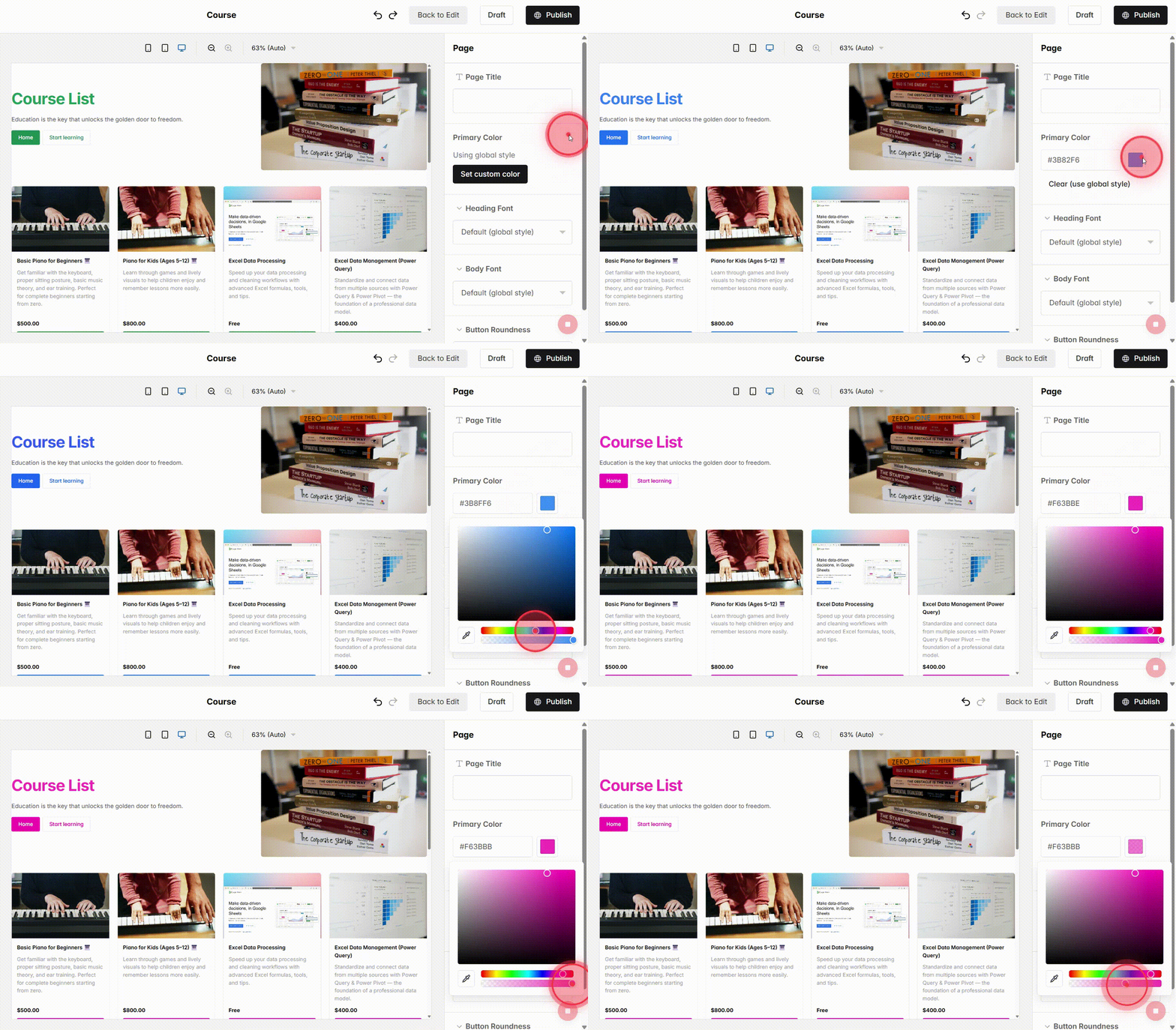
Under Primary Color, use the color picker to choose a new color or enter a custom HEX color code manually.
The selected color will be applied only to the current page.
6
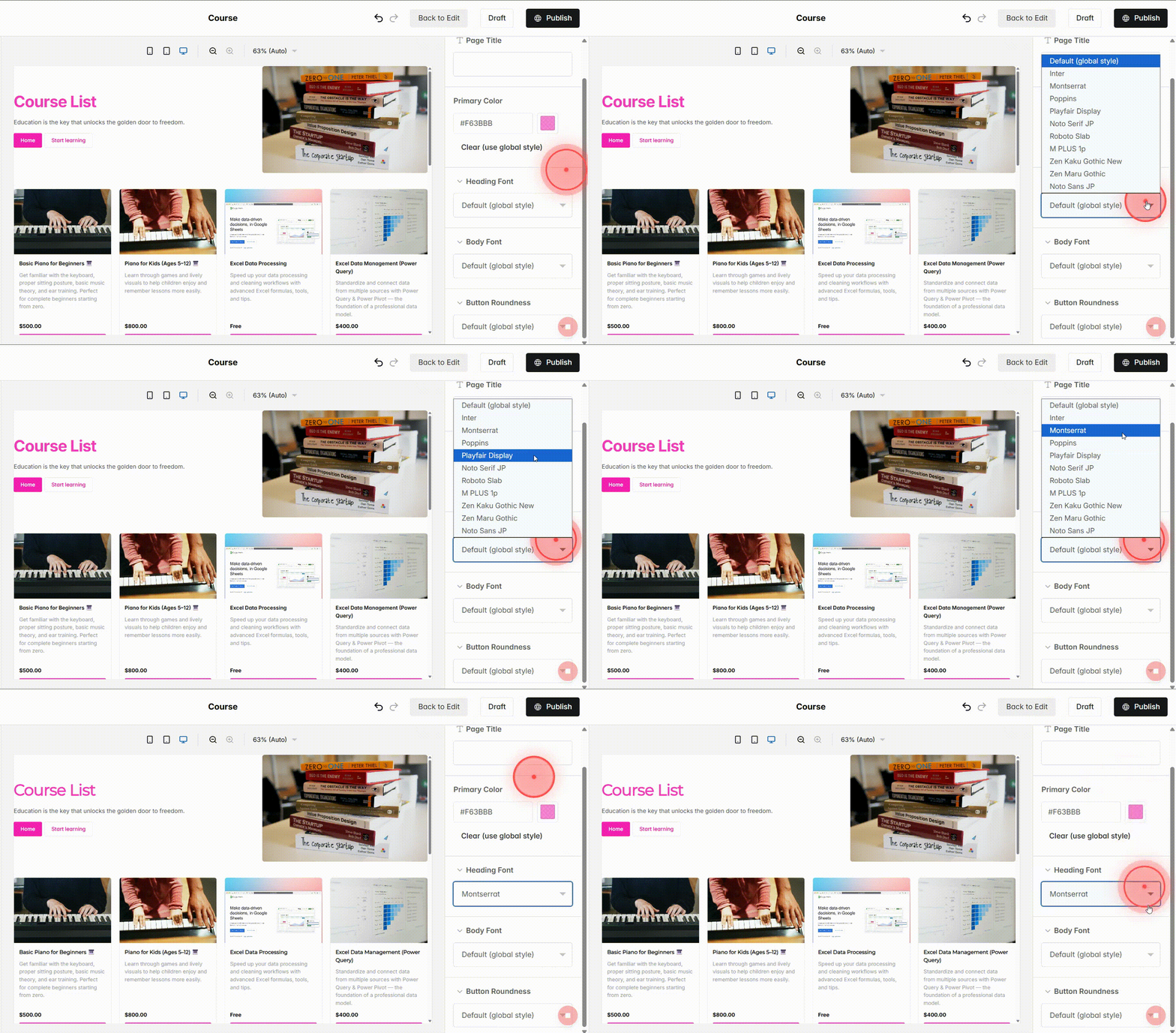
Click Heading Font and choose the font style you want to use for headings.
Different font styles are available to better match titles and headings.
7
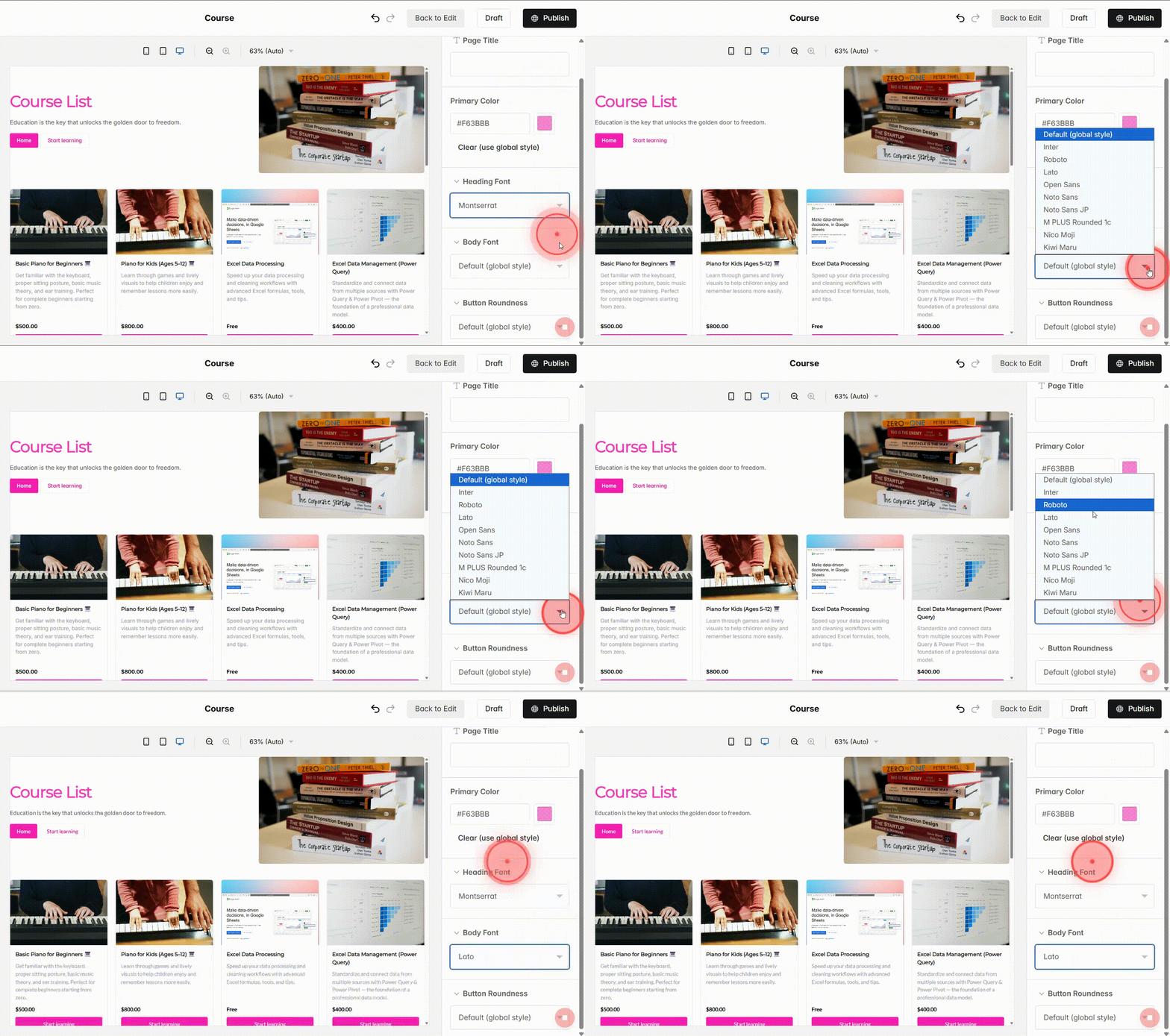
Click Body Font and select a font for the main content text.
These fonts are optimized for readability in longer content sections.
8
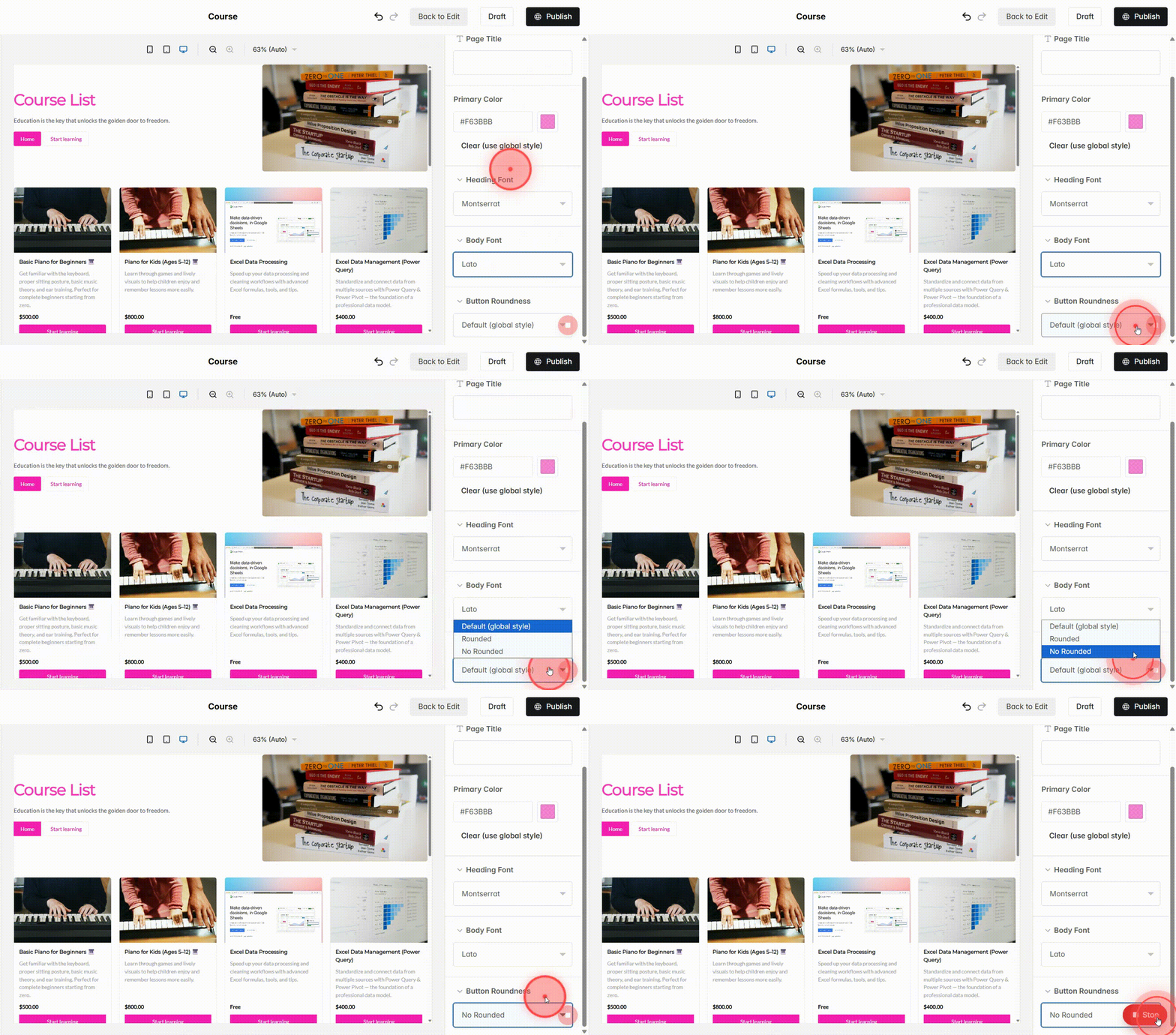
Under Button Roundness, select one of the available styles:
– Rounded: Applies rounded corners to buttons.
– No Rounded: Displays buttons with sharp corners.
9
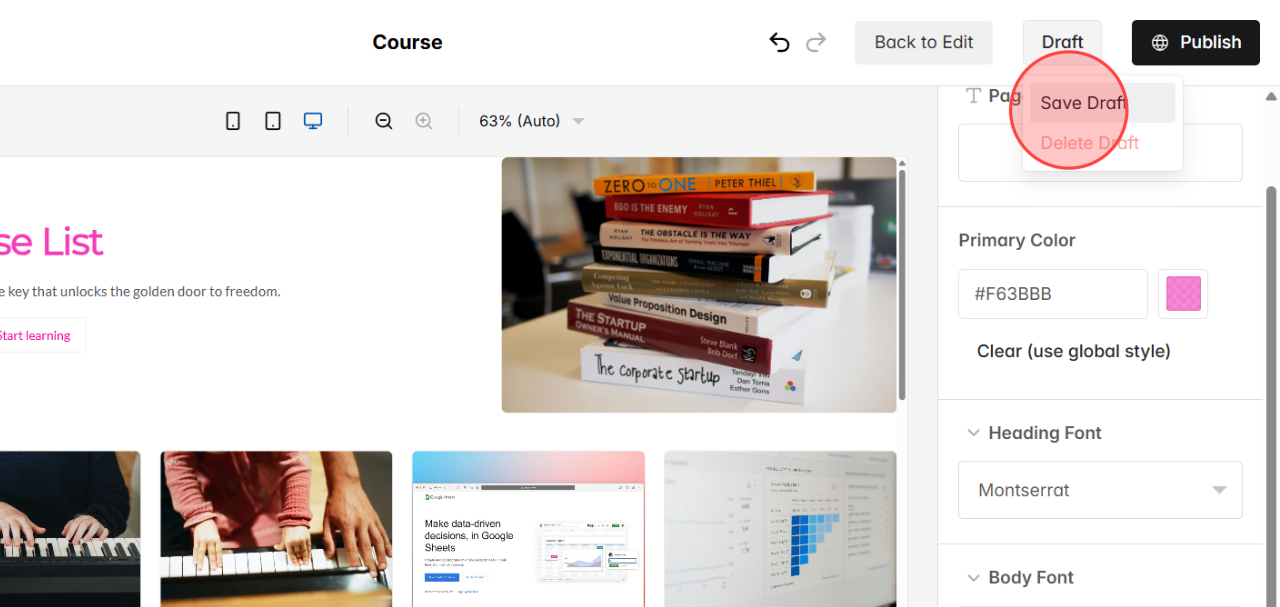
Click the Draft button and choose Save Draft to save the changes privately.
10
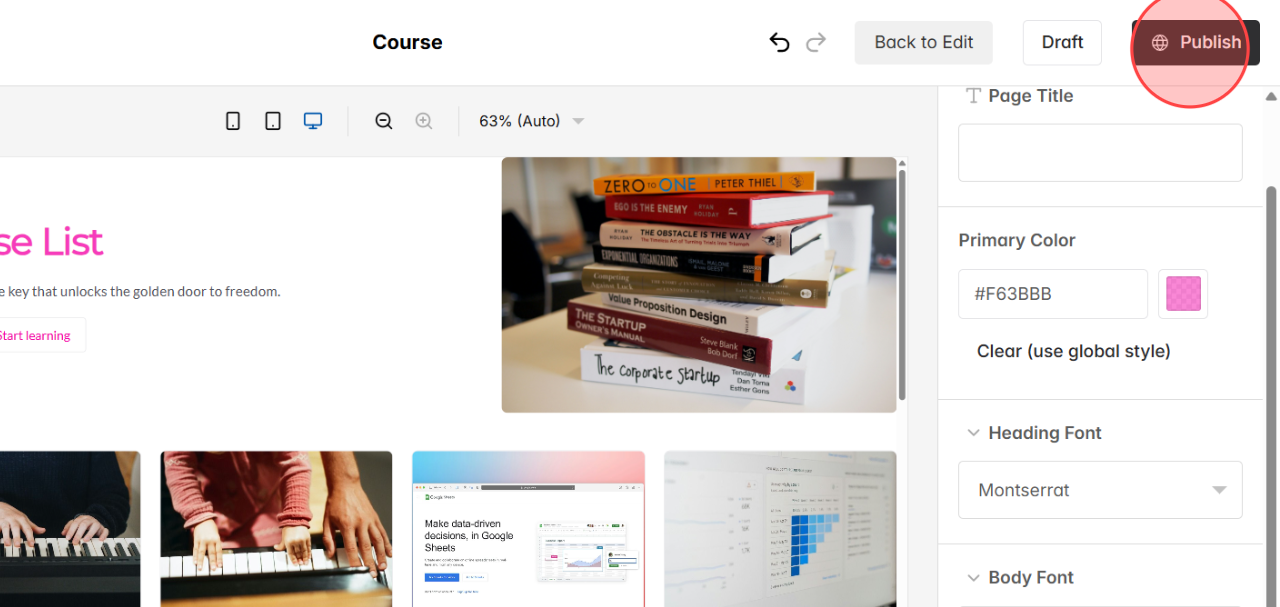
Once you finish customizing the page style, click the Publish button to save and apply the changes publicly.
 English
  日本語
日本語