
1
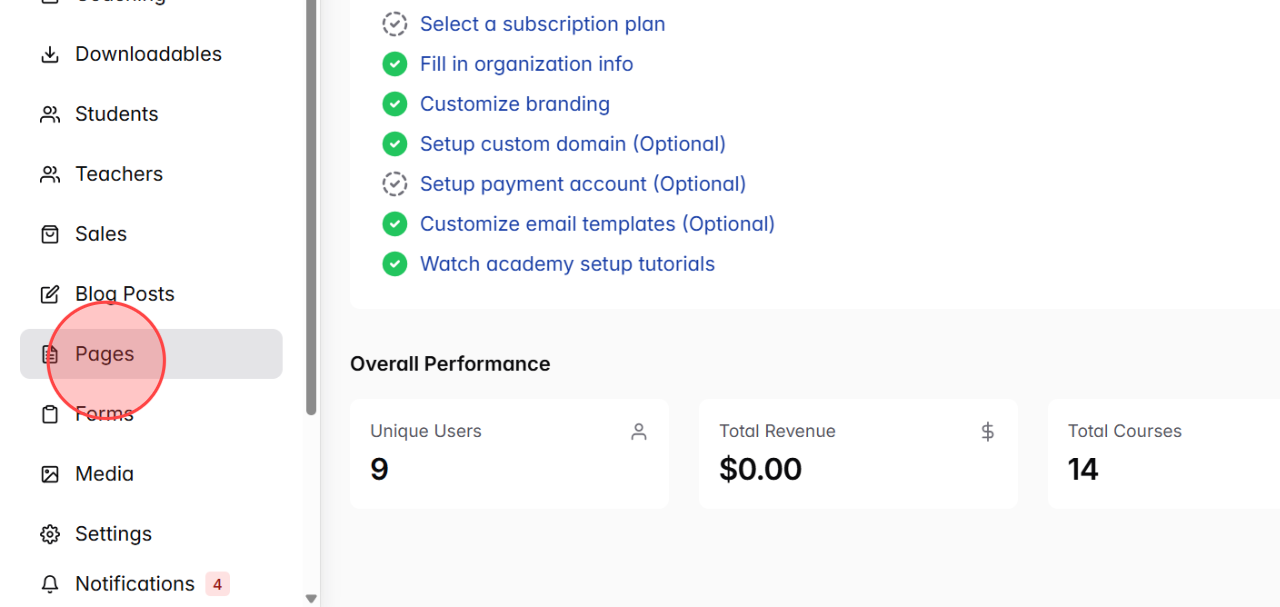
Go to the Pages section from the admin dashboard.
2
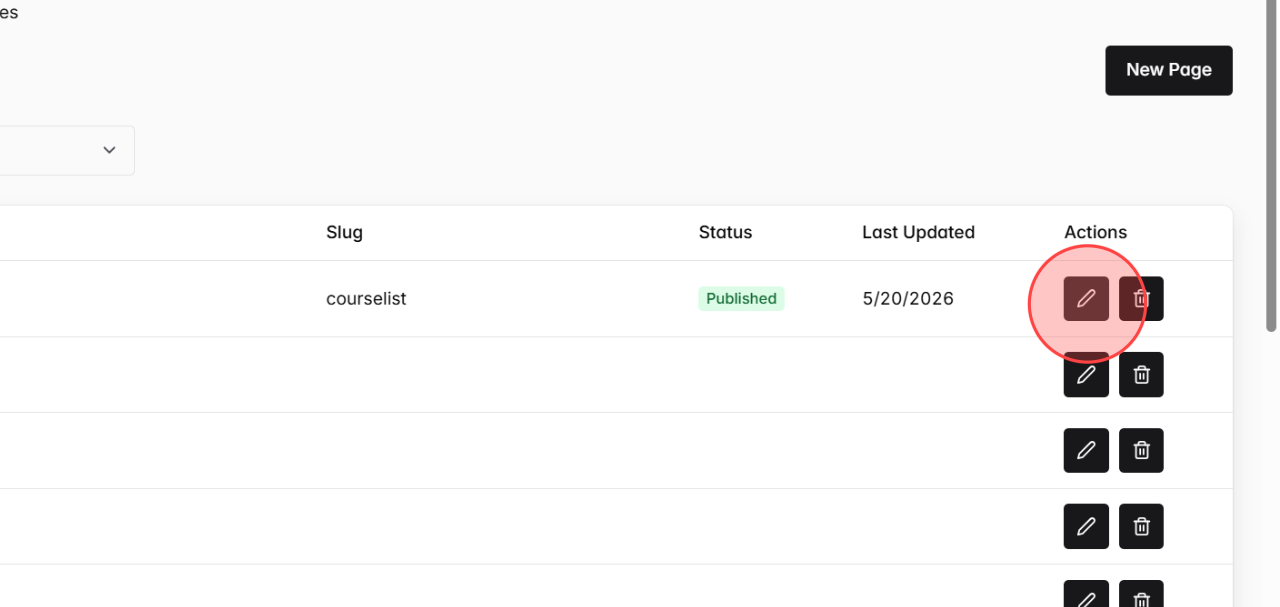
In Pages setting, select the page where you want to reset the page styles.
3
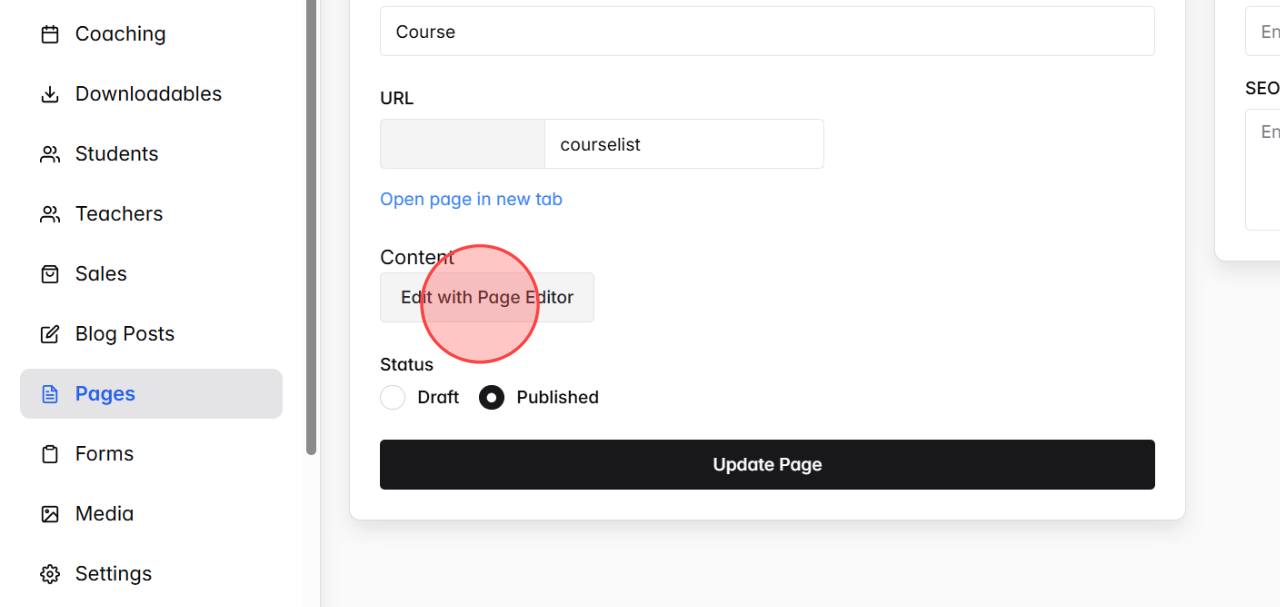
Click the Edit with Page Editor button to open the page editing and style customization screen.
4
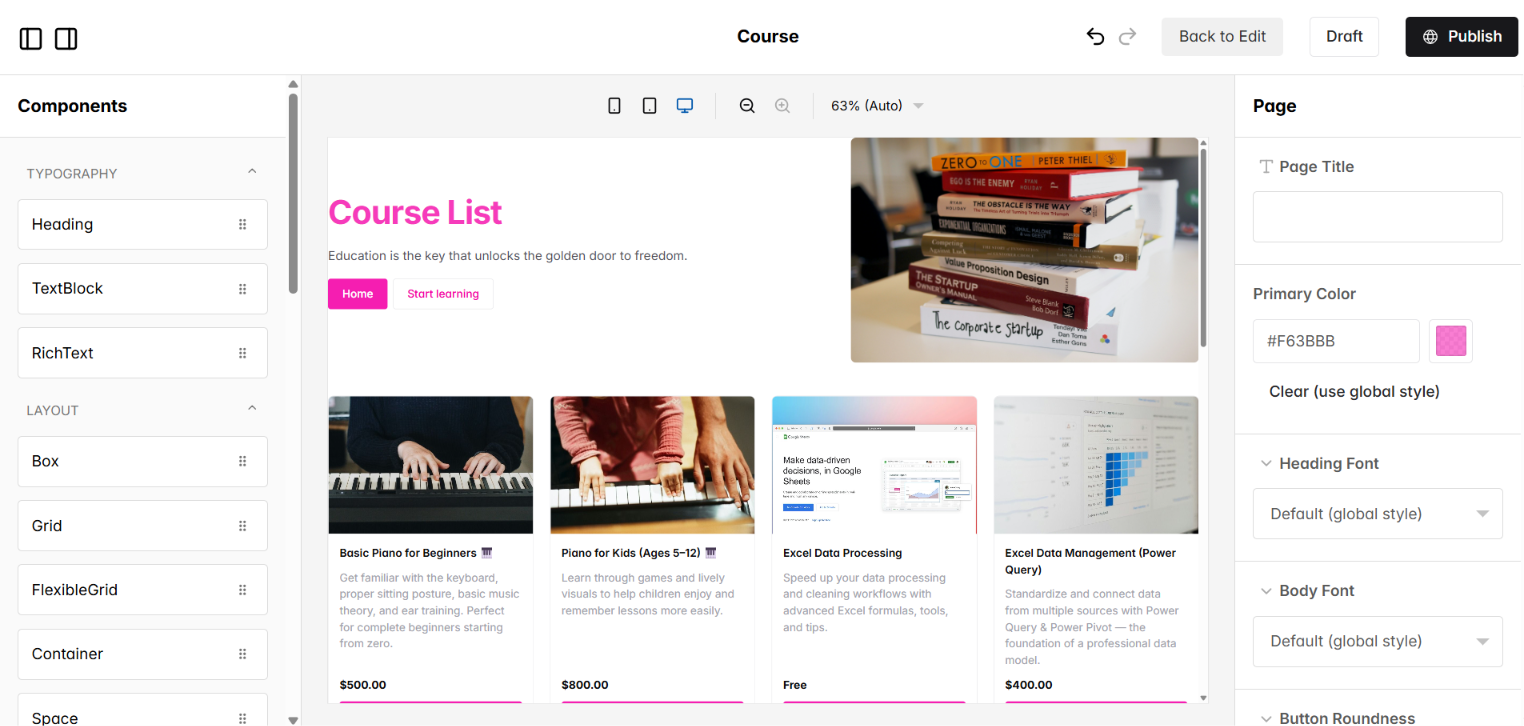
Inside the Page Editor, the customized Page Style settings for that page will appear on the side panel.
5
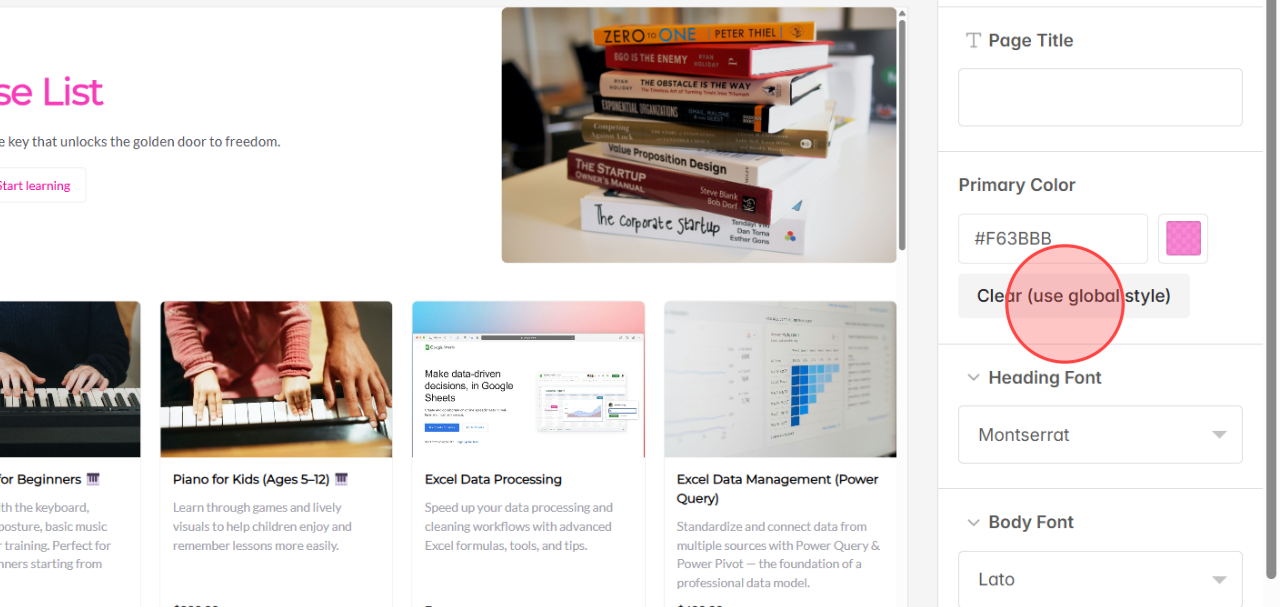
To remove the custom page color, go to Primary Color and click Clear (use global style) to switch back to Global Style.
6
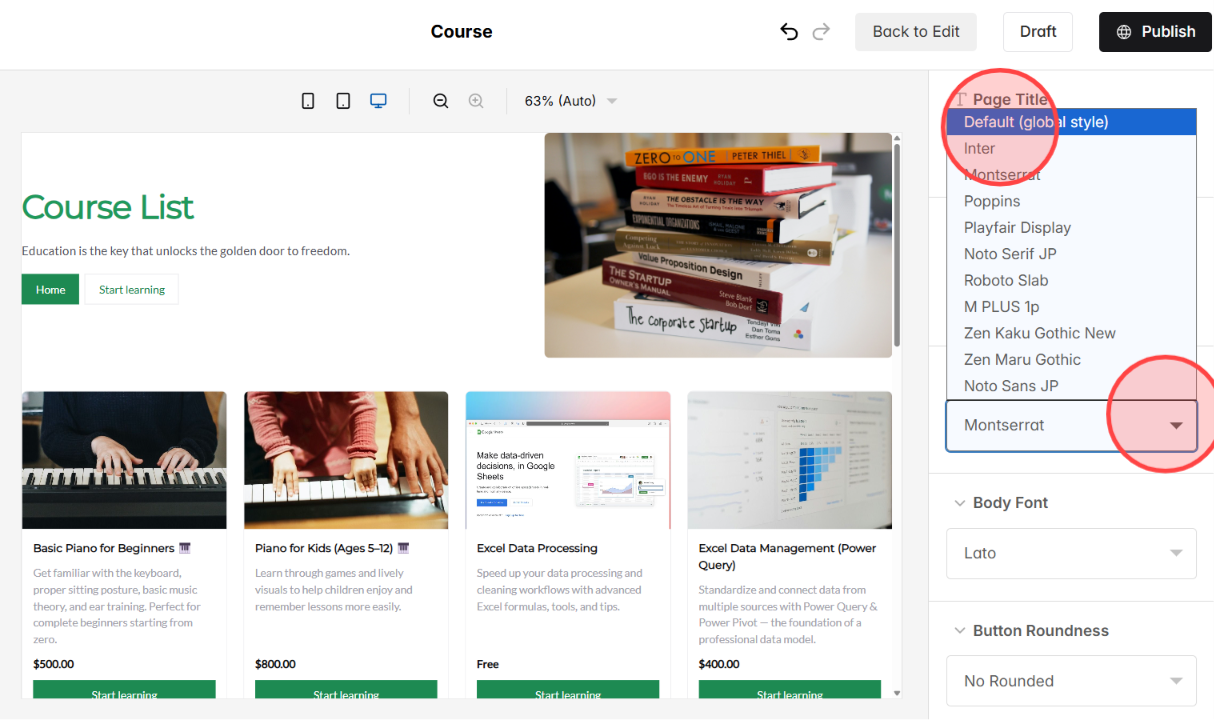
Under Heading Font, select Default (global style) so the page uses the academy’s default heading font again.
7
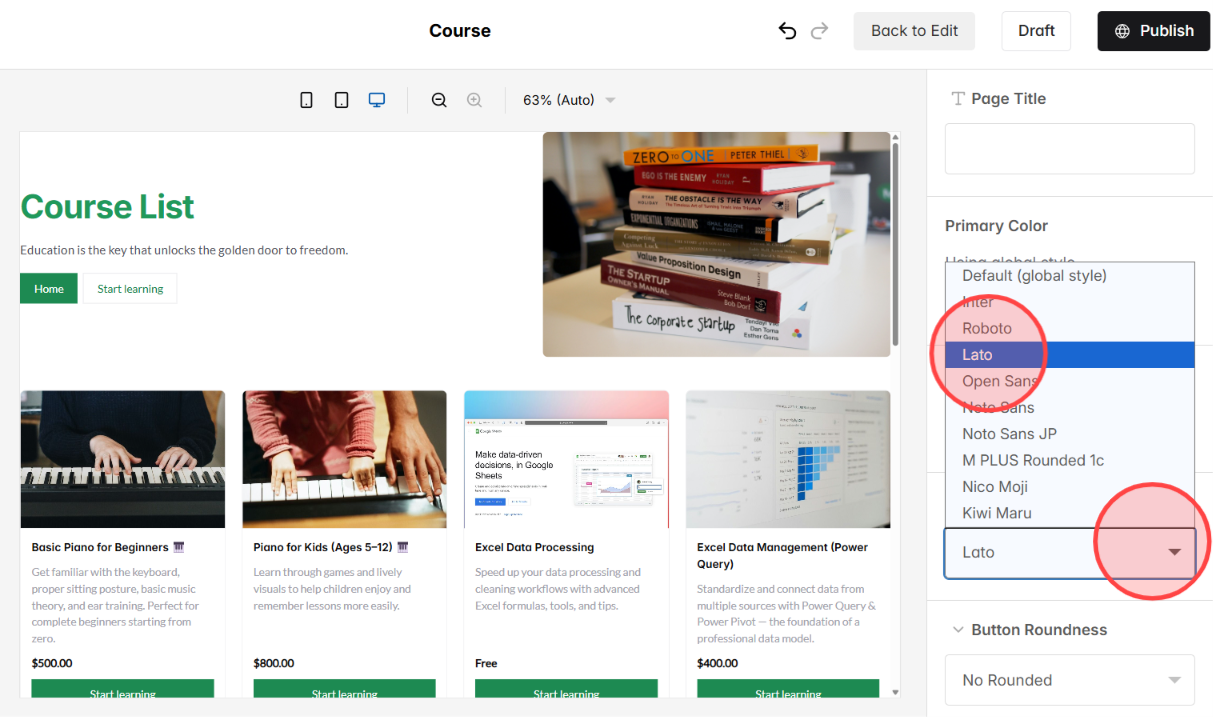
Open the Body Font dropdown and choose Default (global style) to restore the default text font.
8
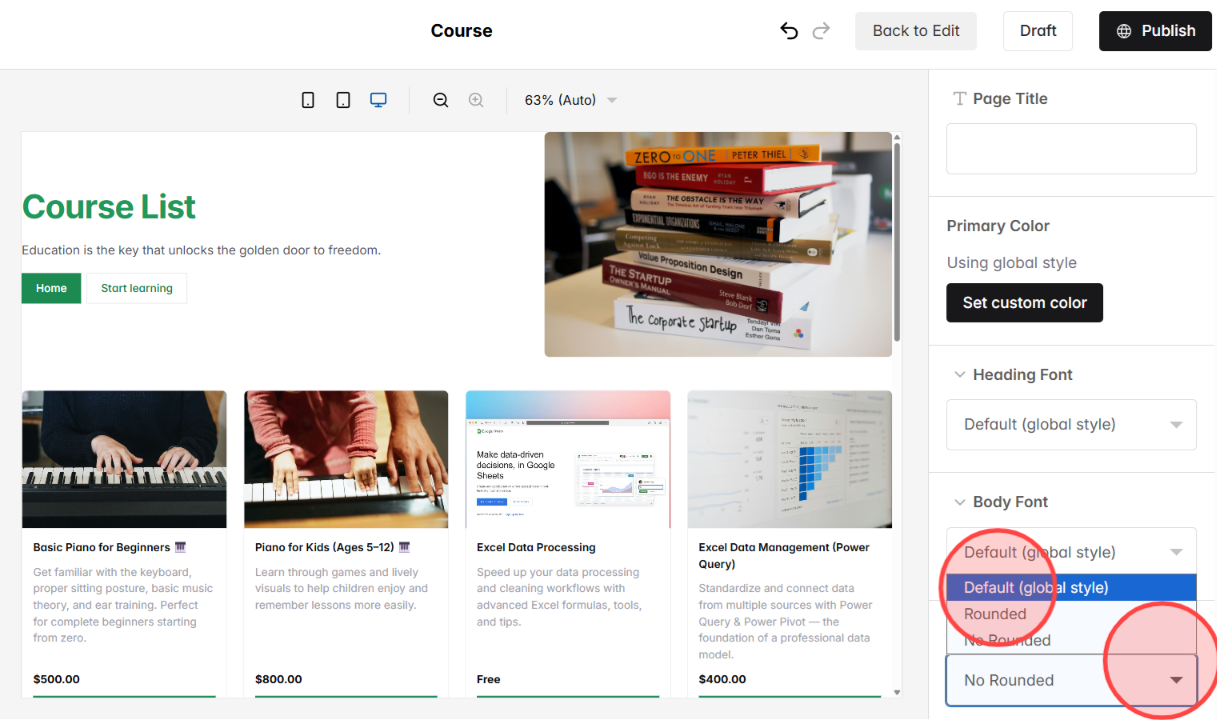
In the Button Roundness setting, select Default (Global Style) to reset the button appearance.
9
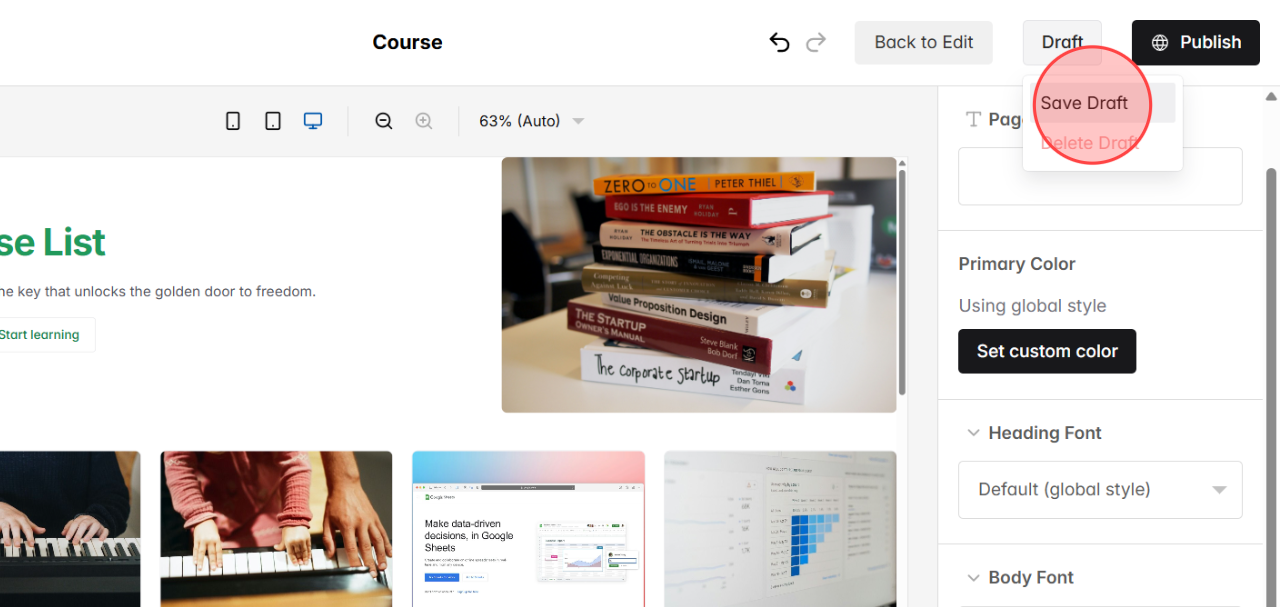
After reviewing the updated styles, click the Draft button and choose Save Draft to save the changes privately.
10
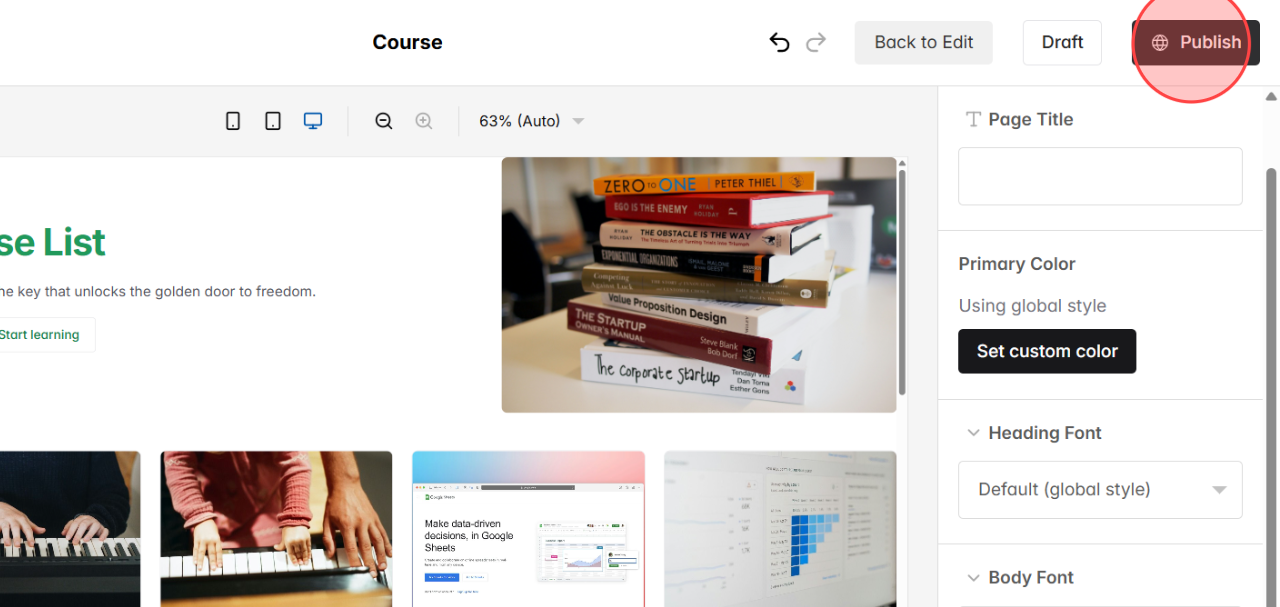
Click the Publish button to apply the restored global styles to the live page.
 English
  日本語
日本語