
1
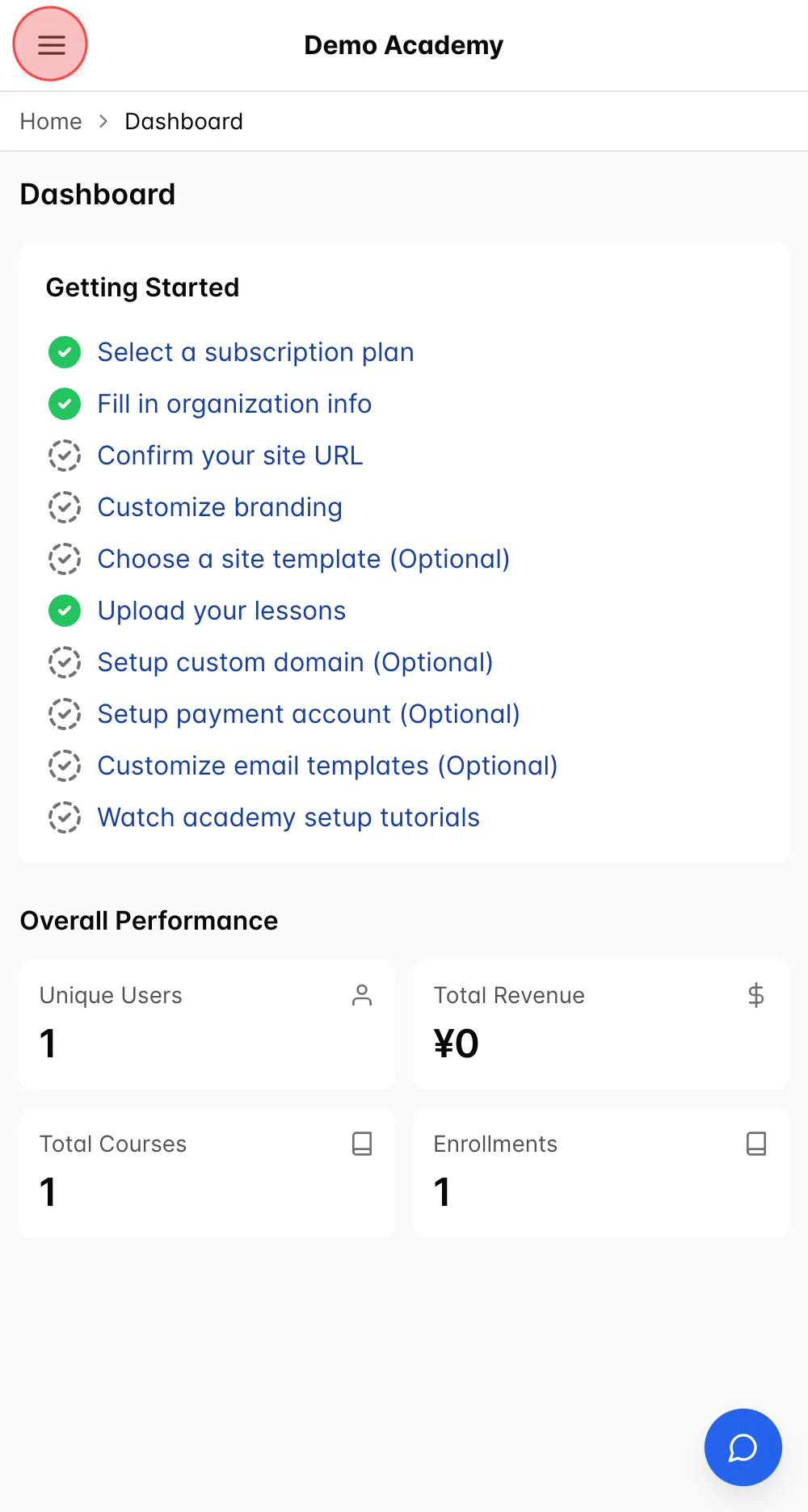
Tap the three-line icon in the top-left corner of the screen to open the admin menu.
2
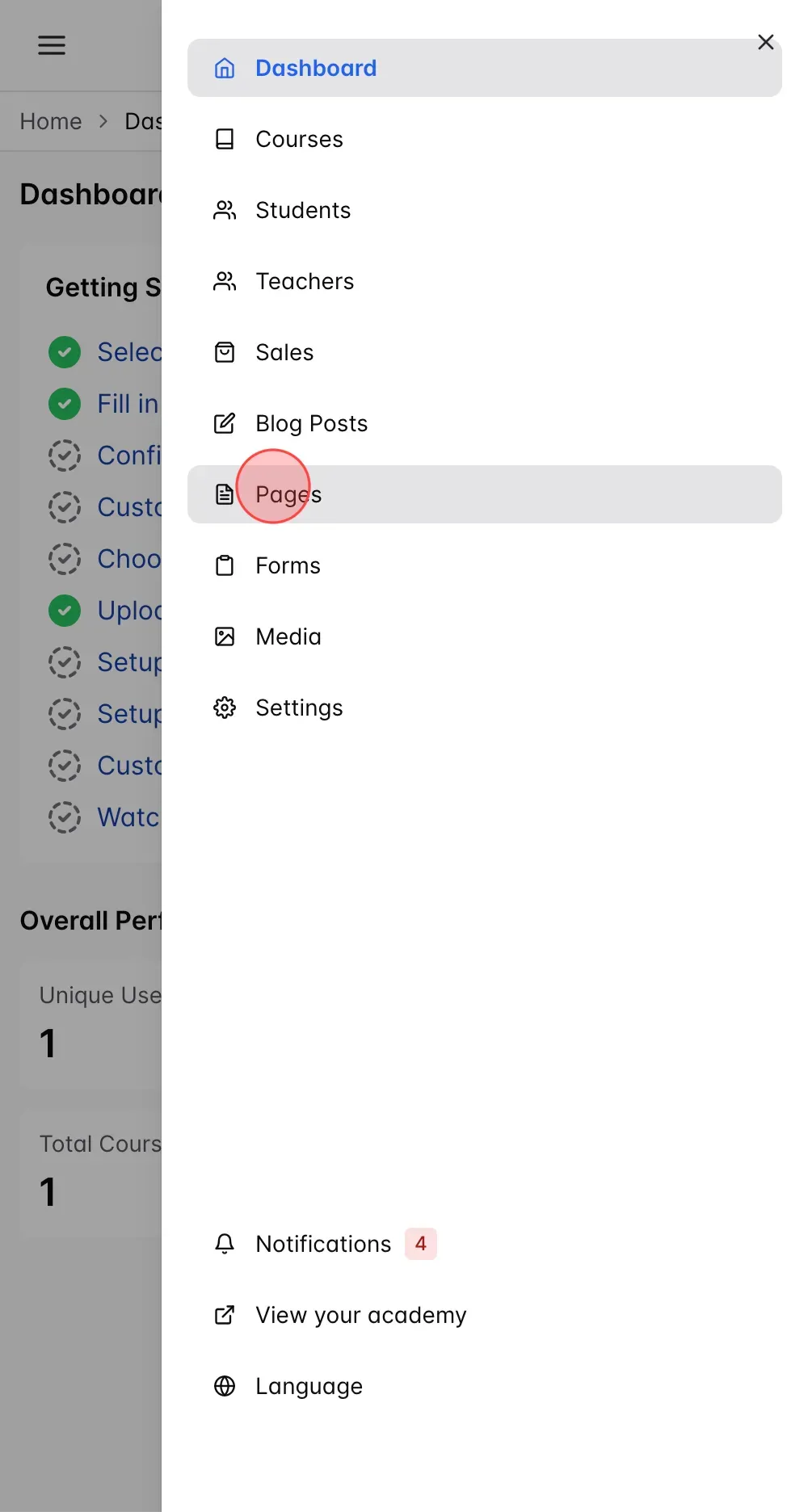
Tap Pages on the Dashboard to access the page list.
3
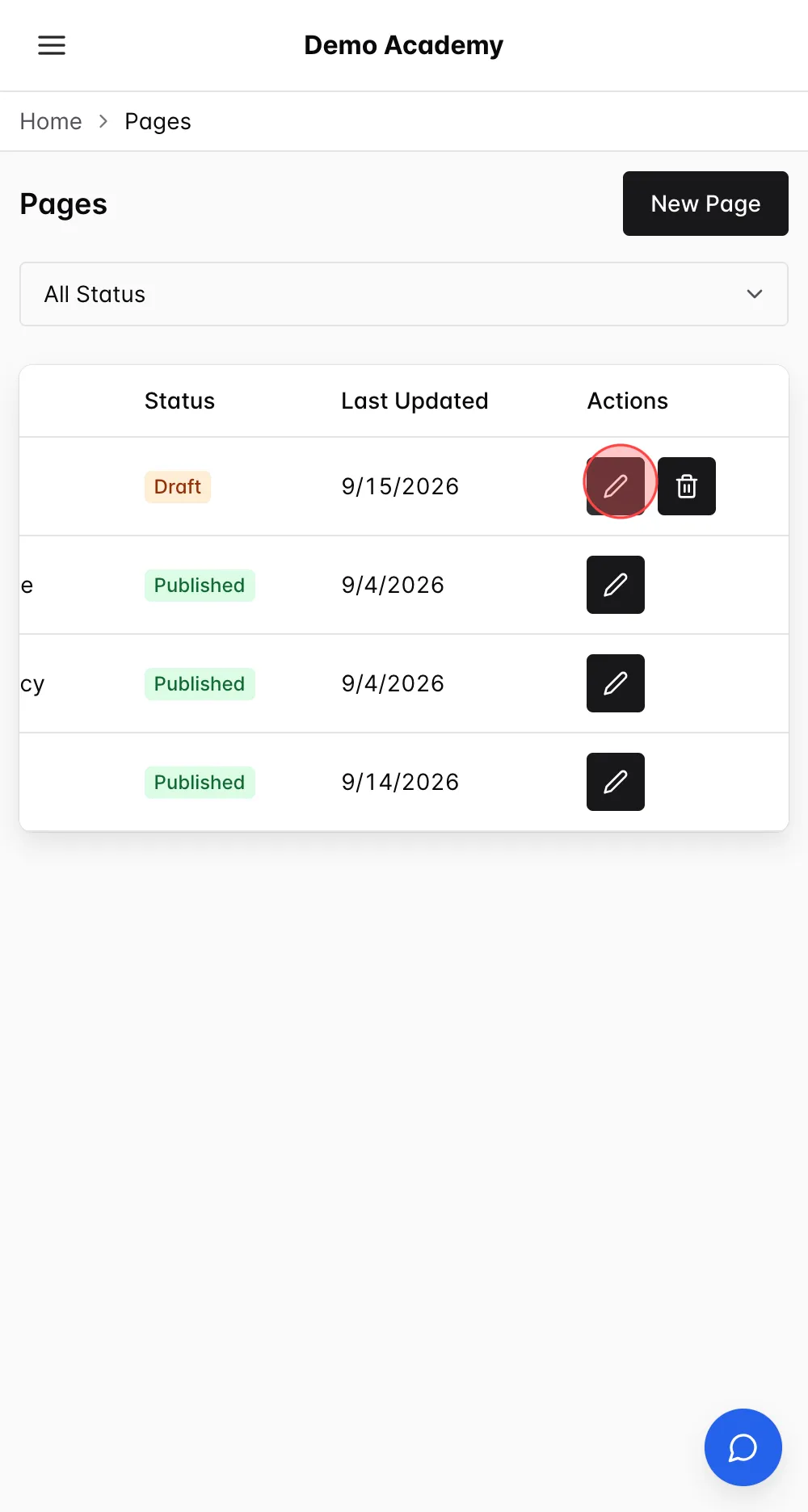
Tap Edit Page next to the page you want to customize.
4
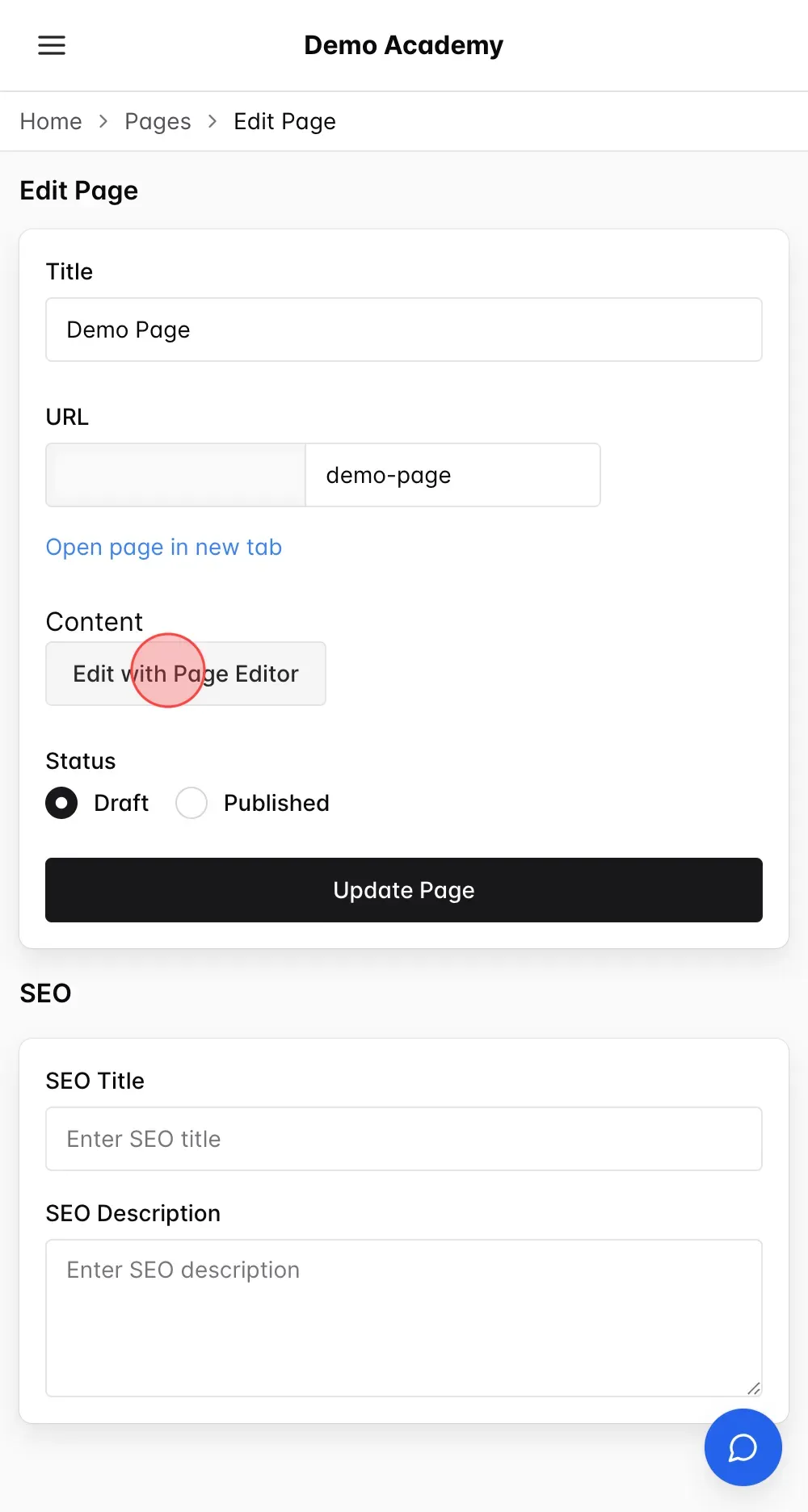
Tap Edit in Page Editor to open the visual editor.
5
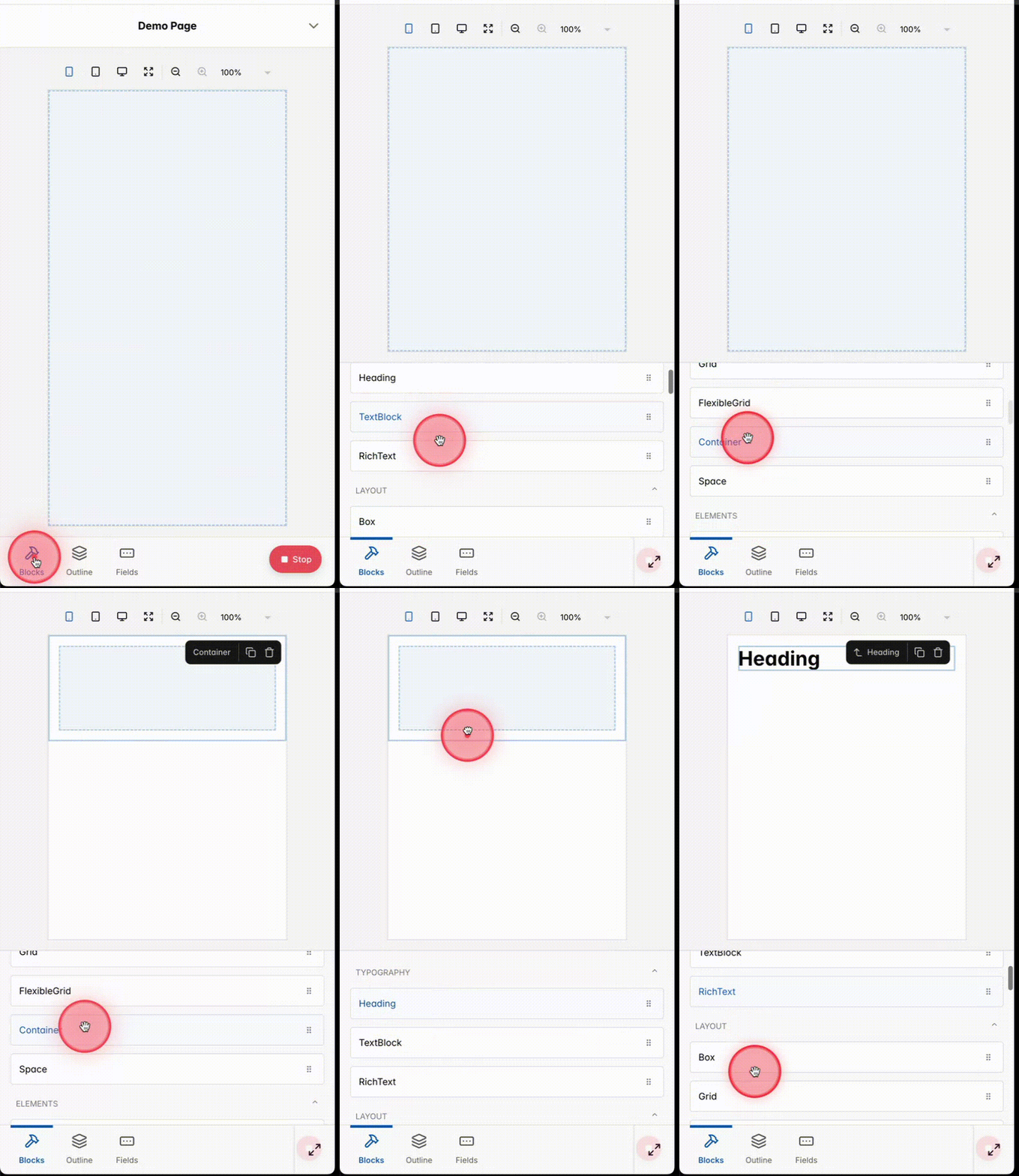
In the Page Editor, select the Blocks tab, then drag and drop each component from the list to the desired position on the page (e.g., Container, Heading, Feature, etc.).
6
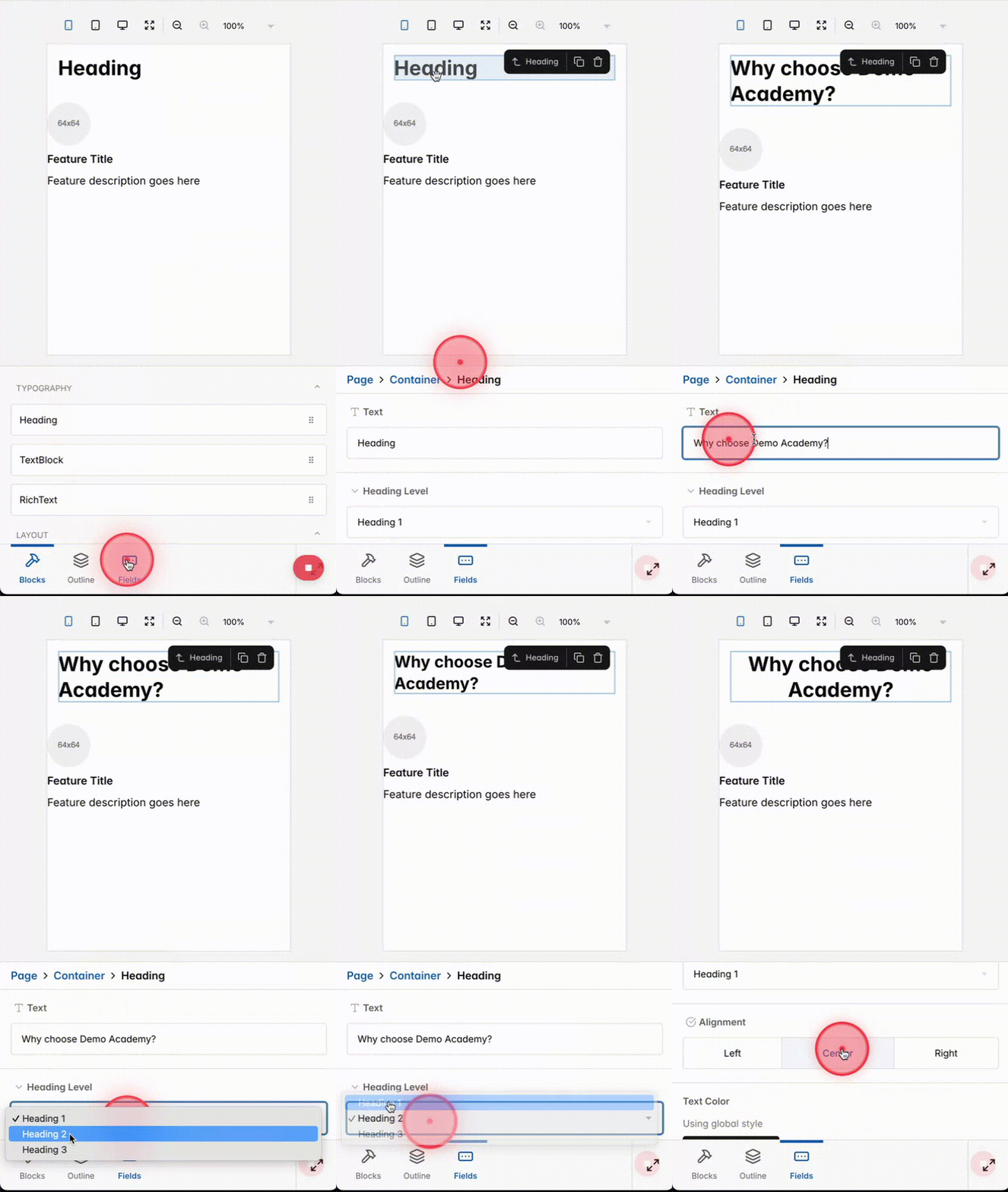
Select the Fields tab to change the properties of the block.
7
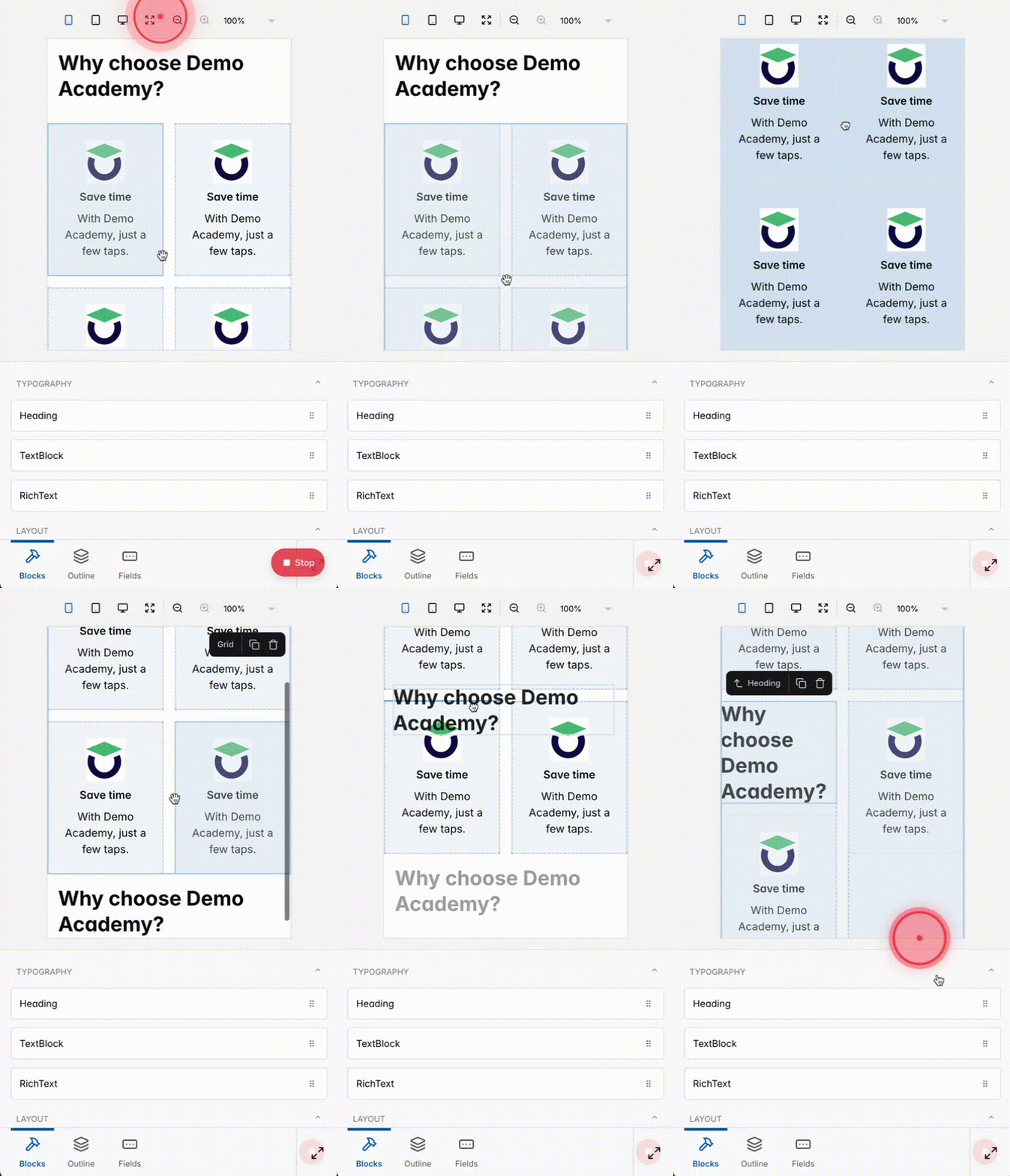
To change the order of the blocks, press and hold a block, then drag and drop it into the desired position.
8
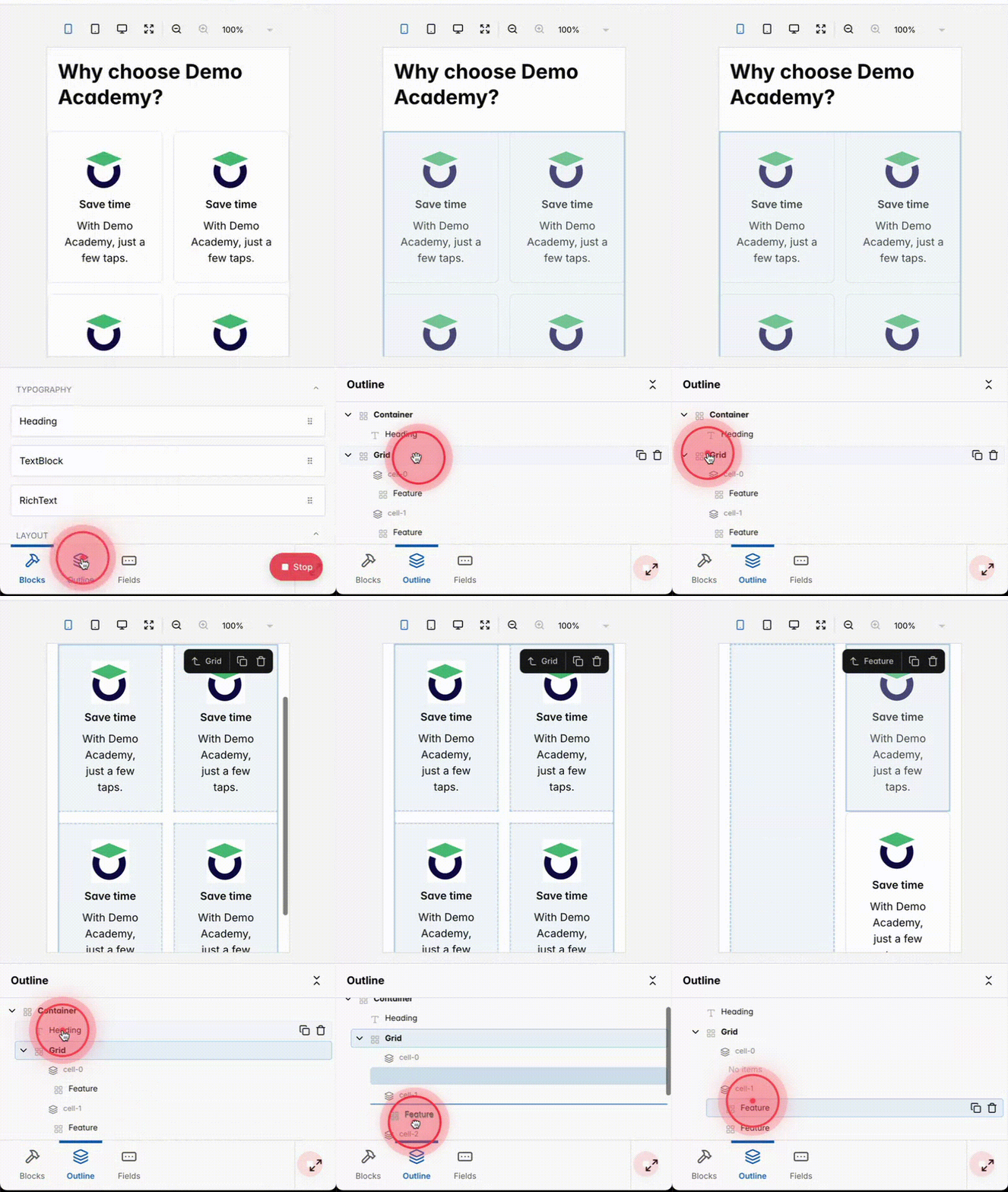
If your page contains many blocks, use the Outline tab to easily drag and drop blocks into the desired order.
9
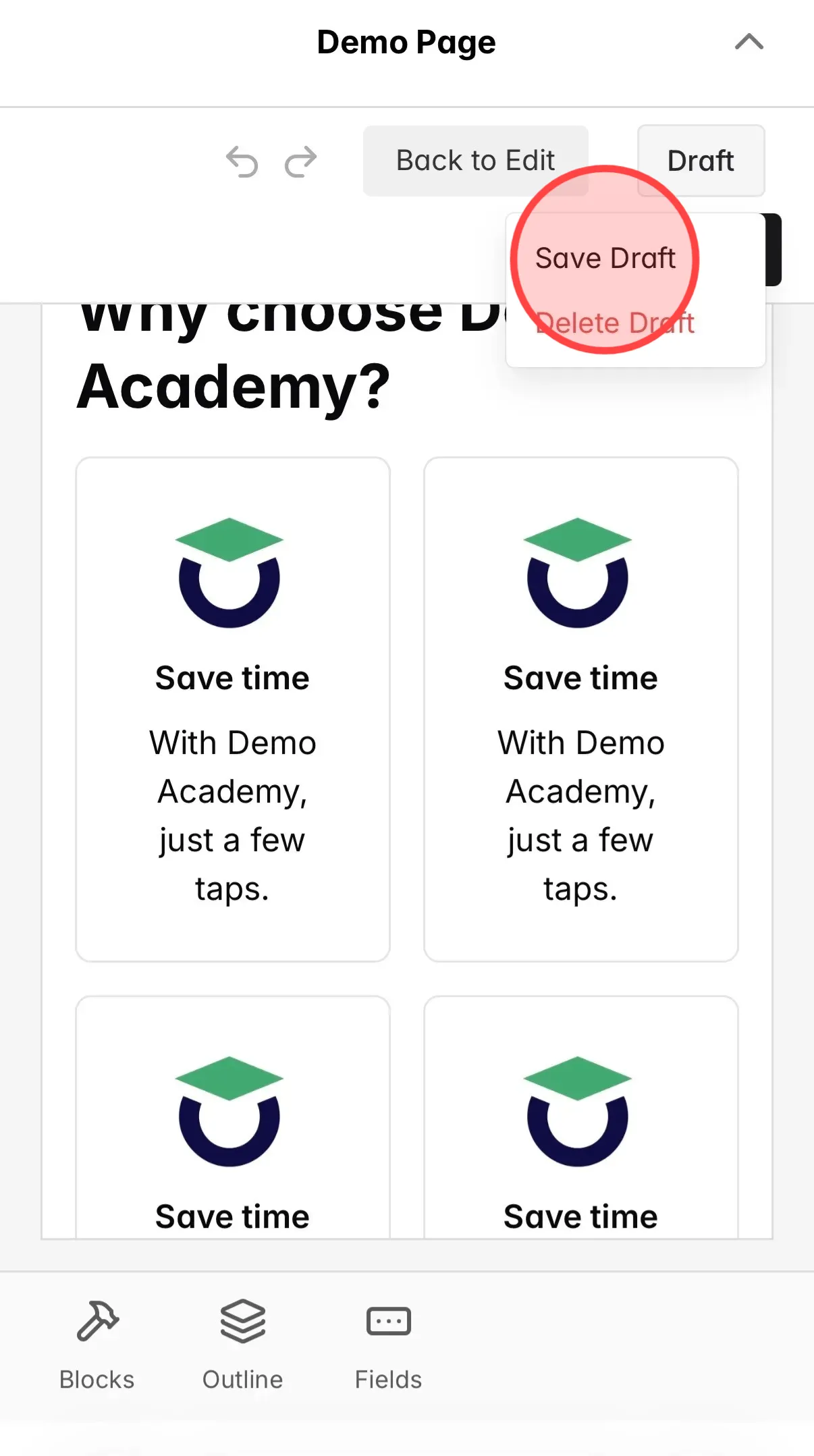
Tap Draft and then tap Save Draft to save your changes without publishing them live.
10
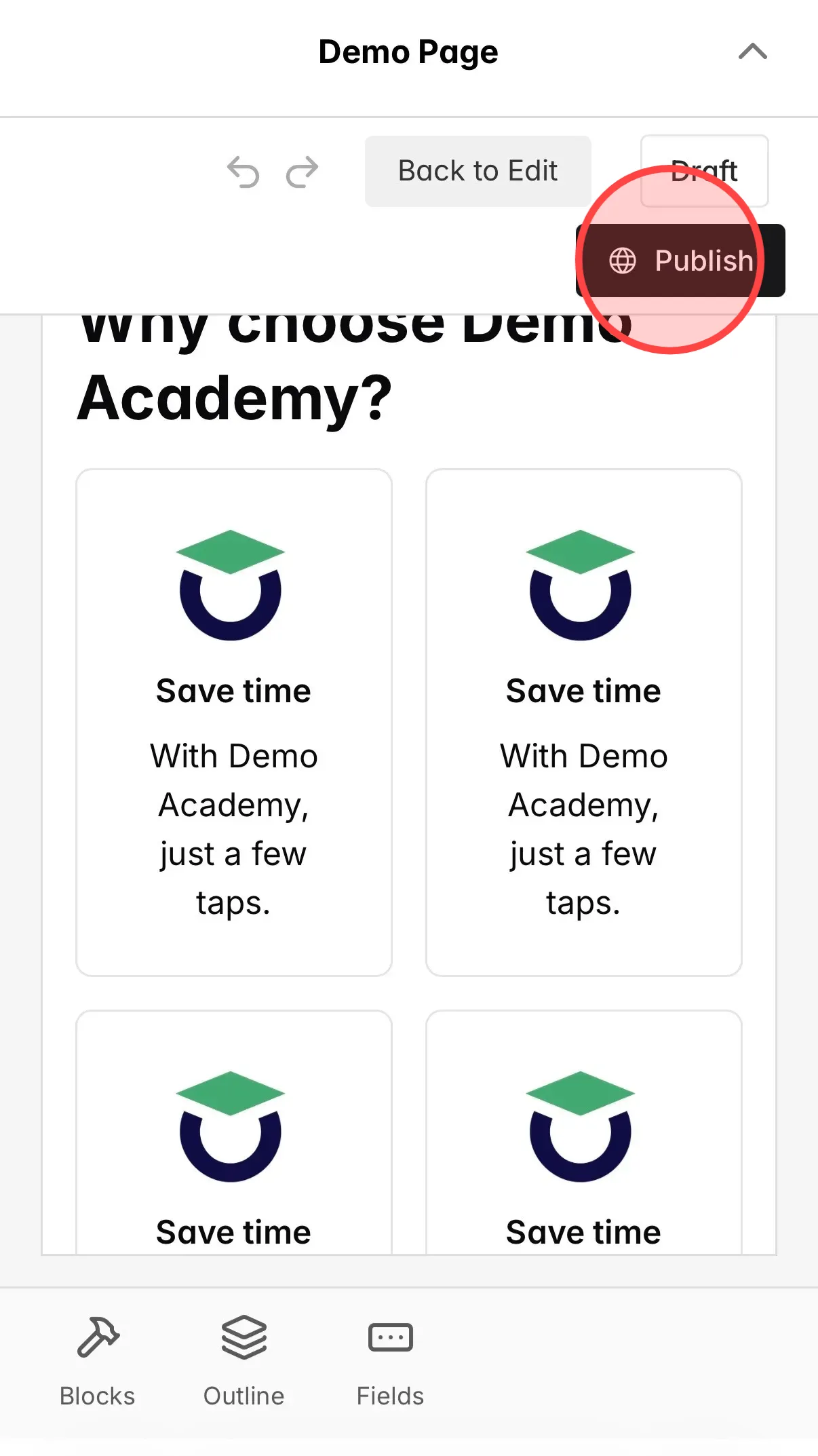
Tap Publish to make your changes live on the site.
 English
  日本語
日本語