
1
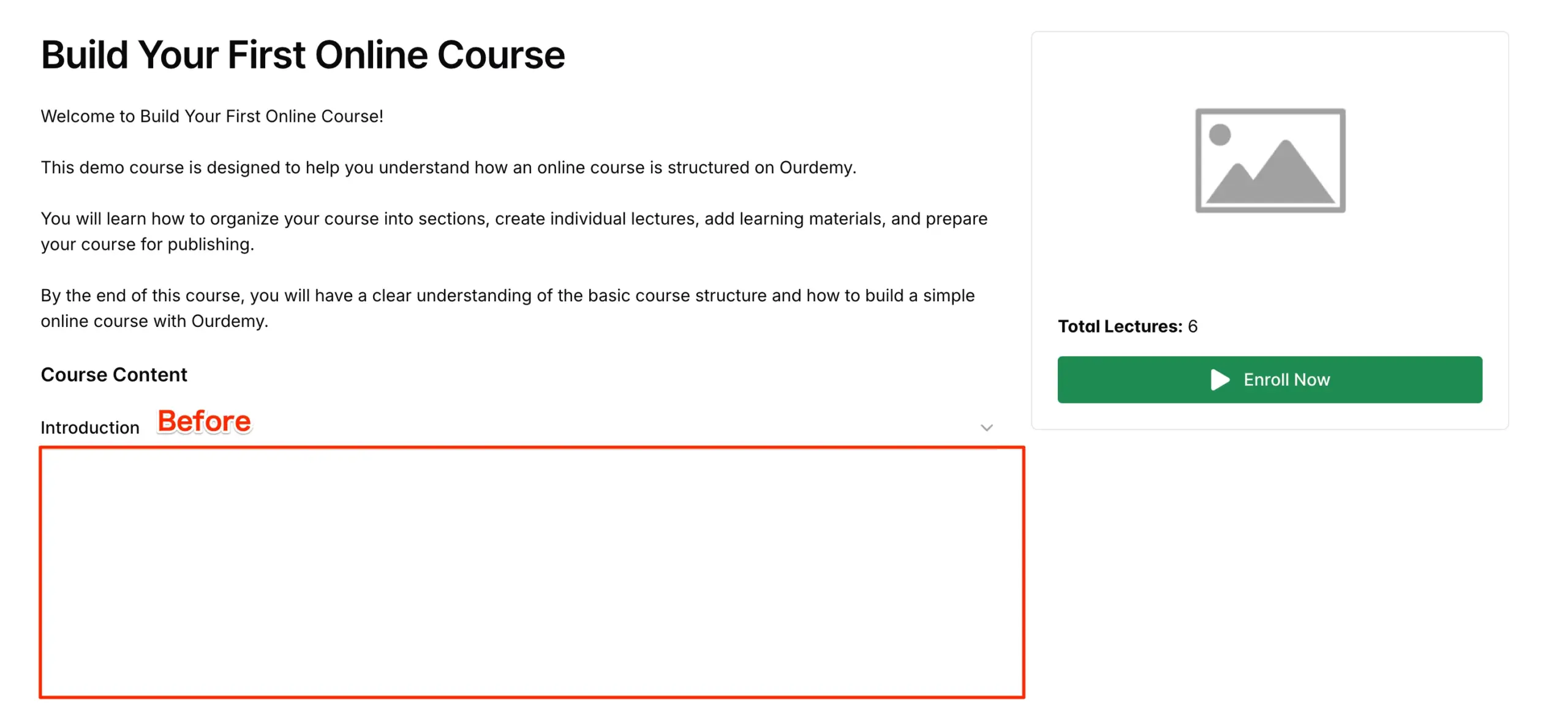
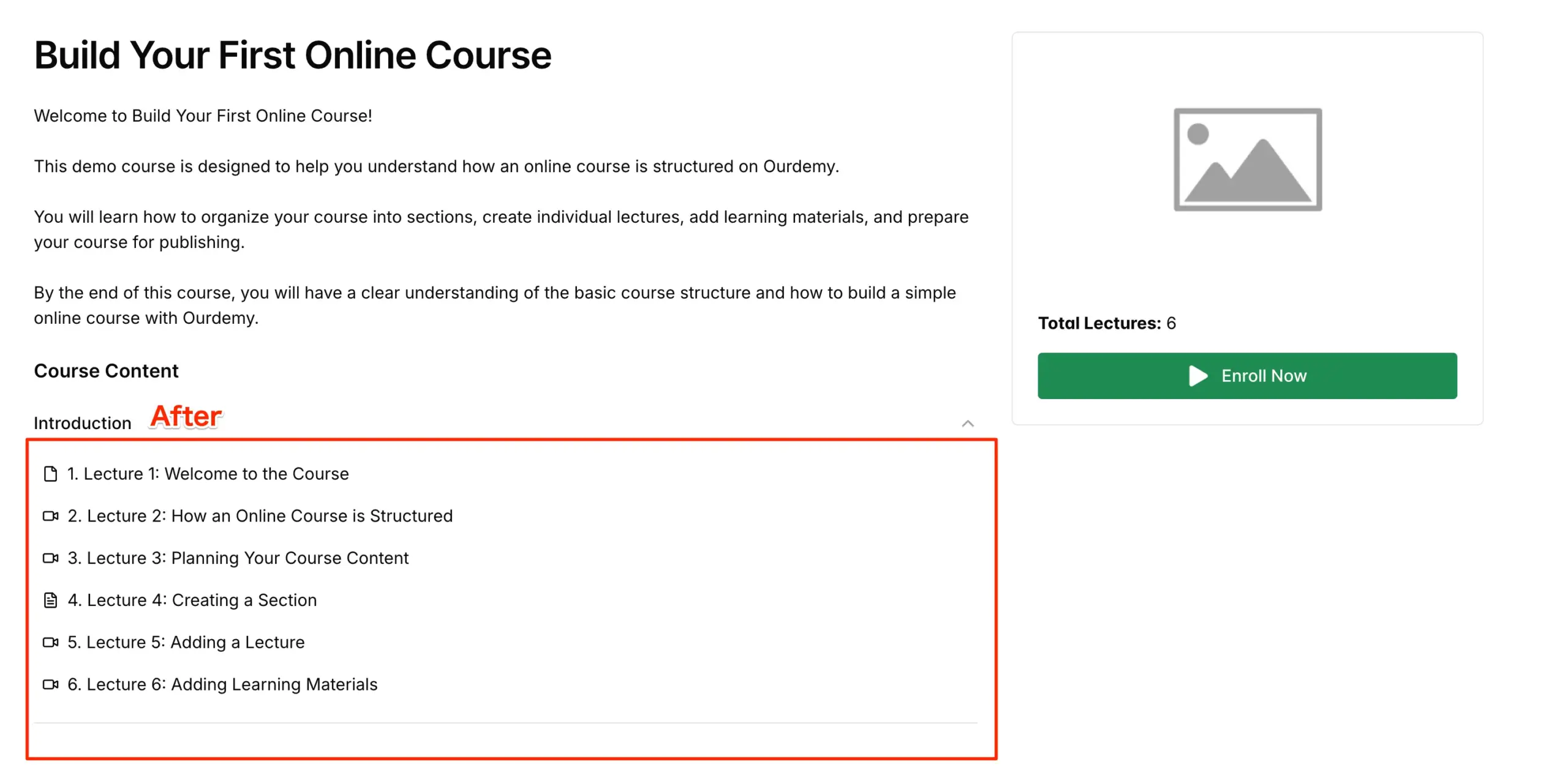
By default, course sections on the course detail page are collapsed, so students have to click each section to see the lectures inside. When this option is enabled, all sections stay expanded, letting visitors see the full course content before deciding to enroll. It’s especially useful for courses with only one or two sections but many lectures, since the detail page can look quite empty when everything is collapsed.
2
This is the display result after adding the expand the course by default on the student site option.
3
To enable this feature for the course you want, simply do the following:
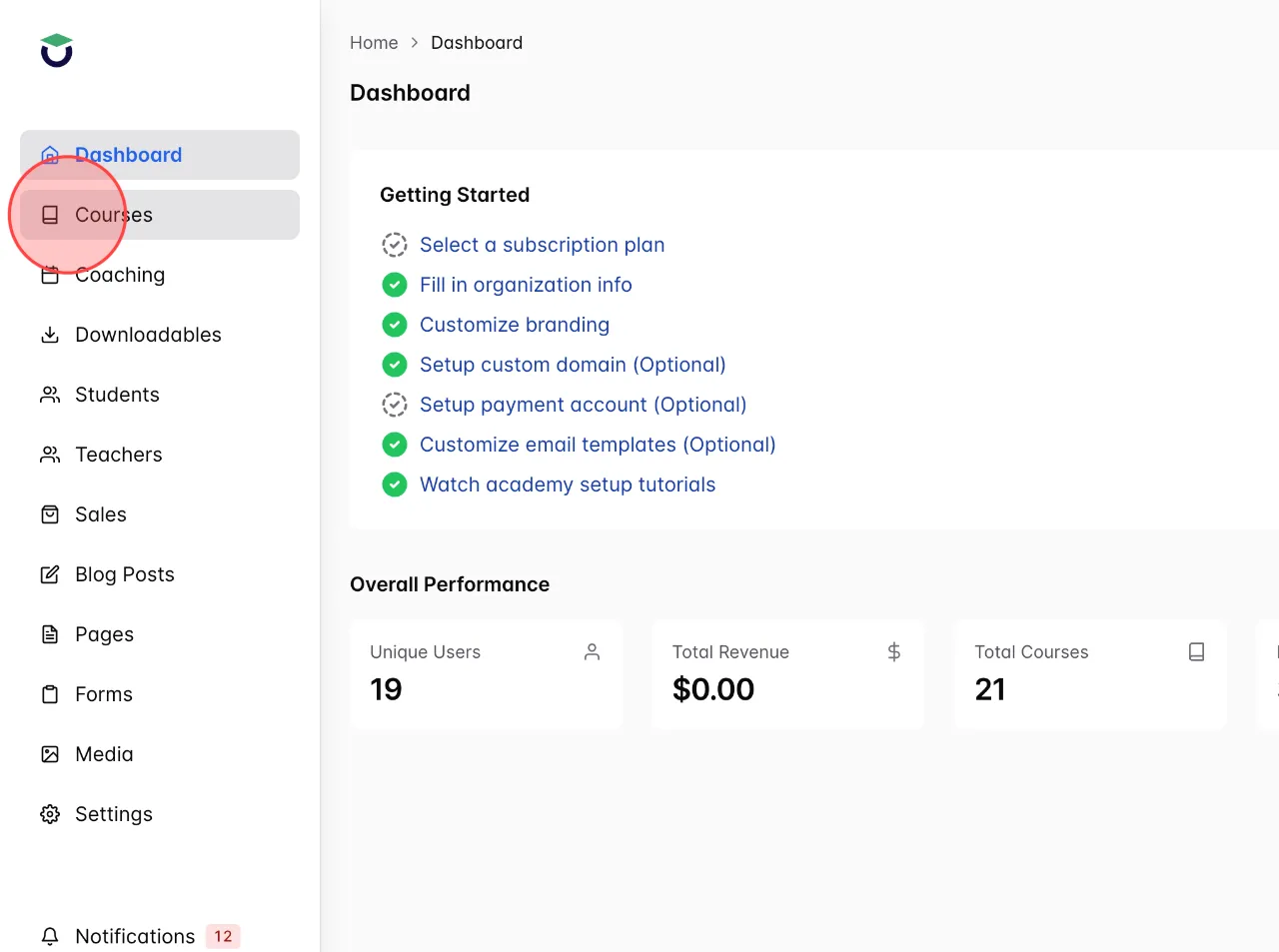
1. Click Courses in the dashboard menu.
1. Click Courses in the dashboard menu.
4
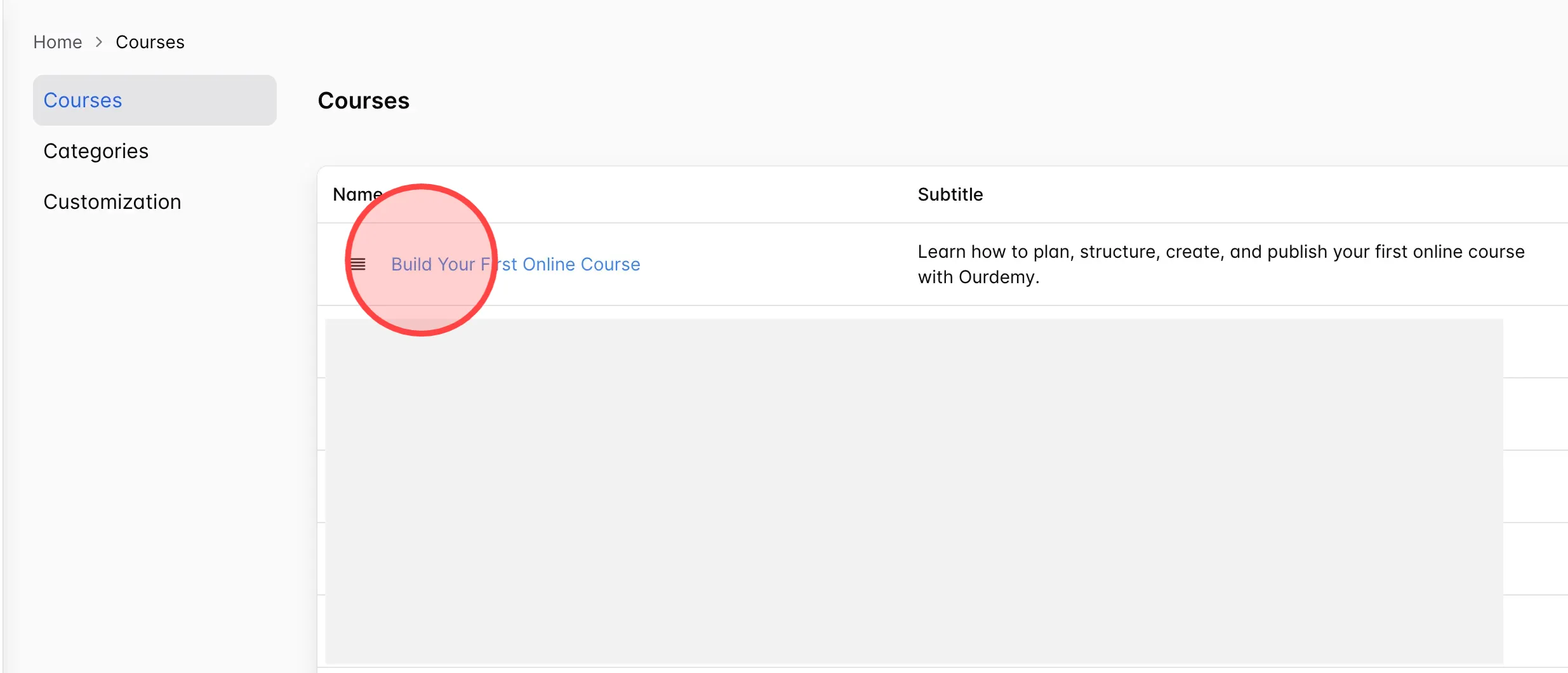
Click on the title of the course to open it.
5
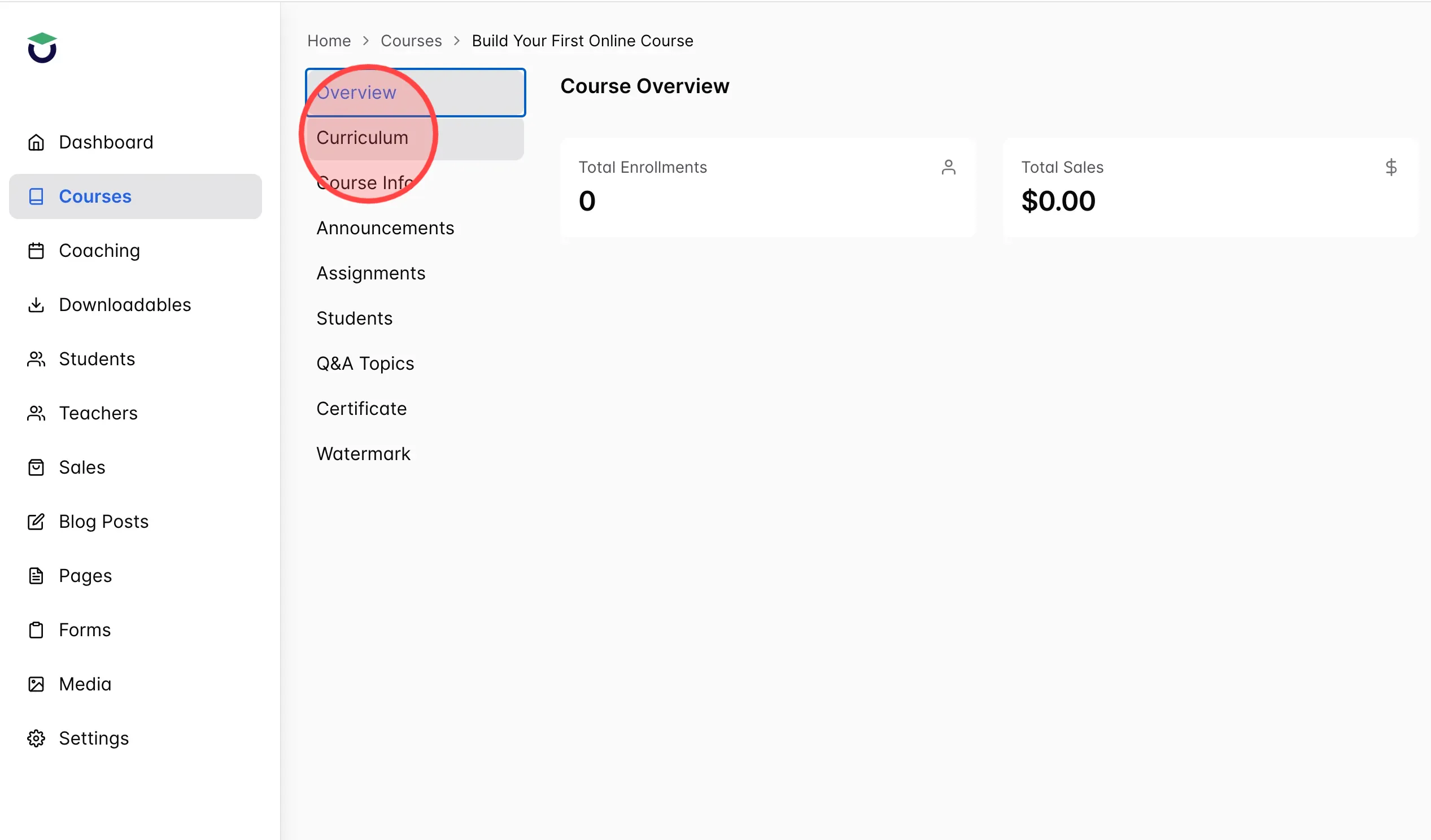
Click Curriculum to open the course lecture list.
6
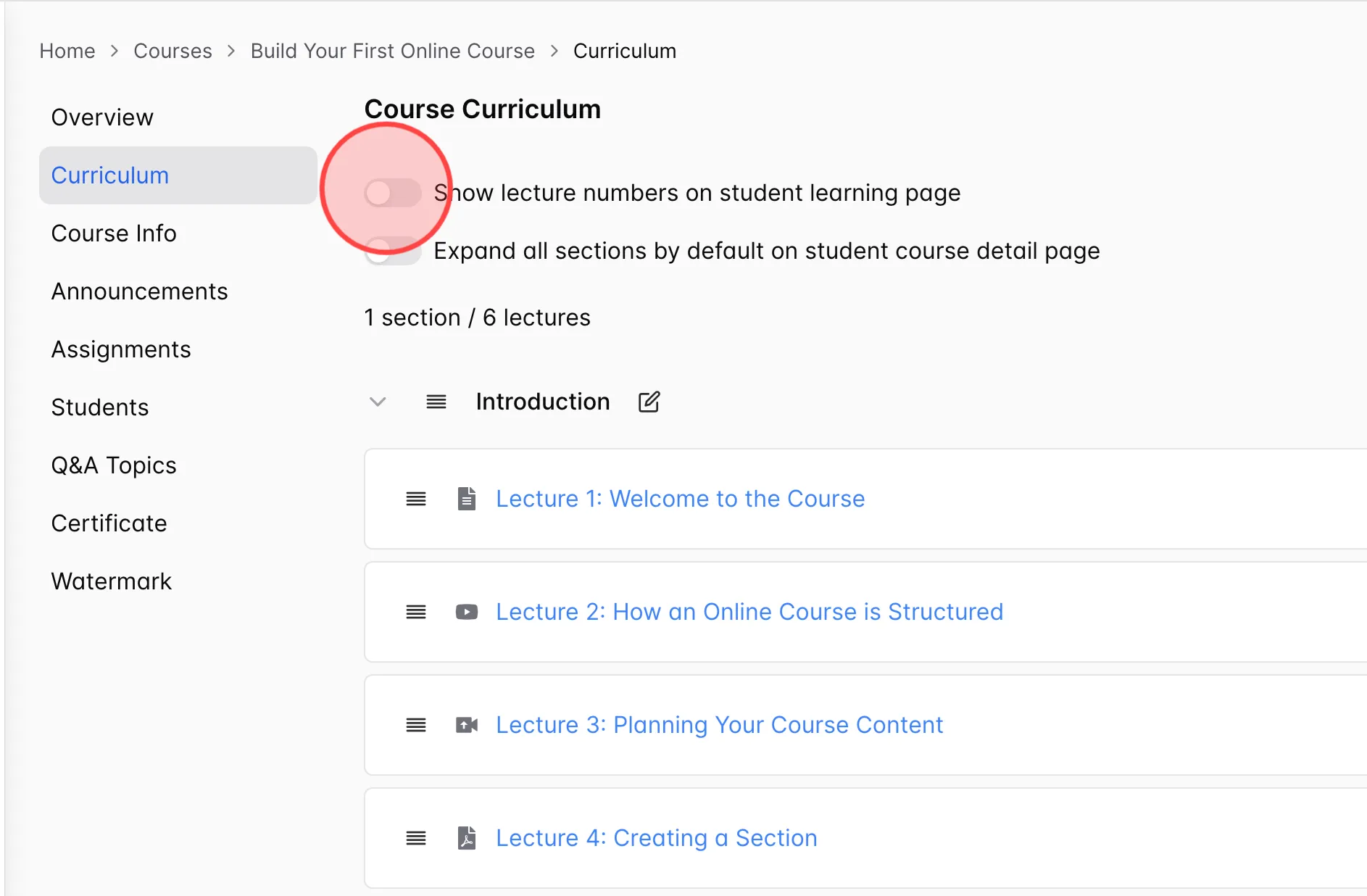
Turn on Show lecture numbers on student learning page if you want to add a number before each lecture title.
7
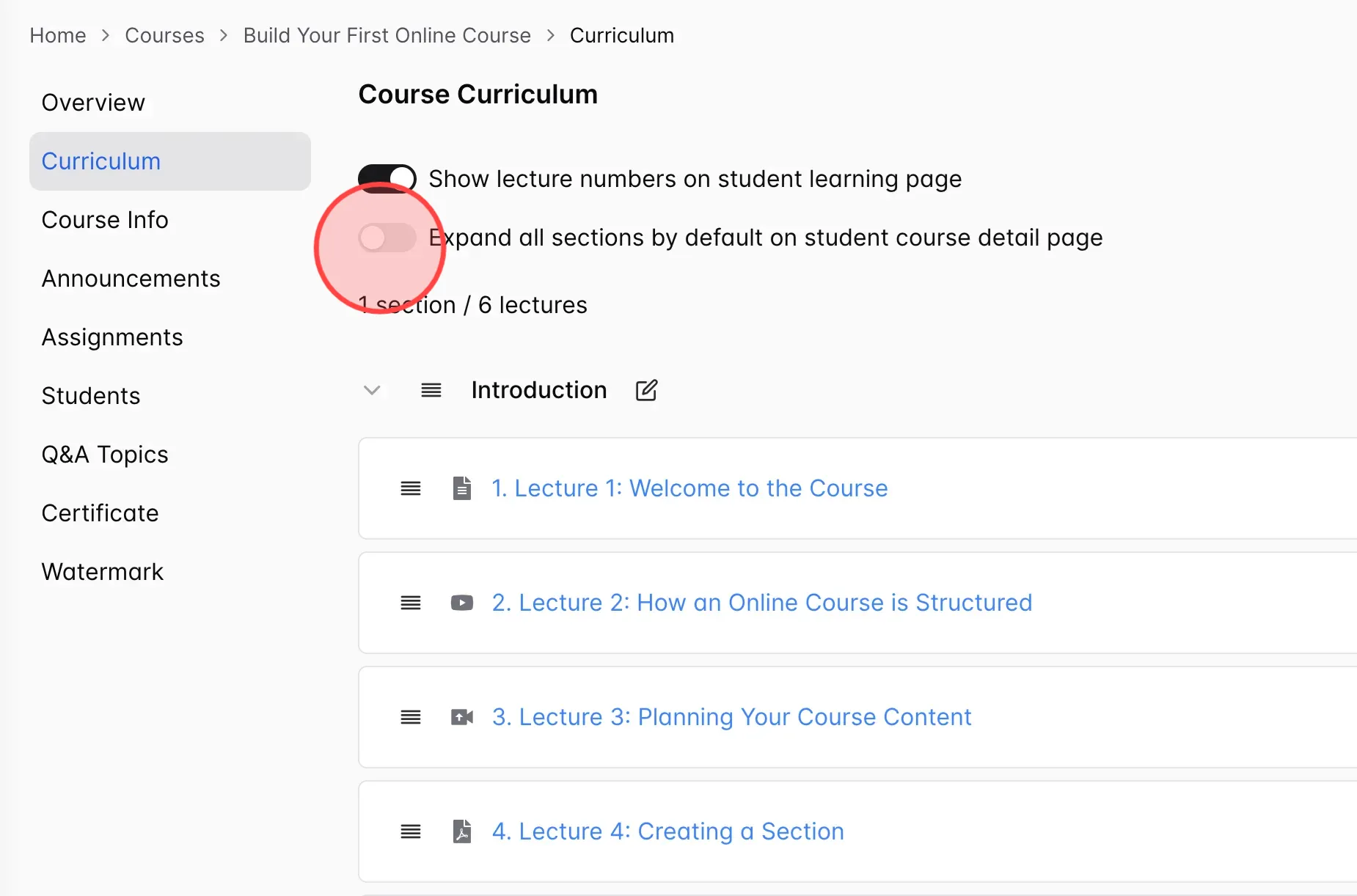
Finally, turn on Expand all sections by default on student course detail page to enable the feature.
 English
  日本語
日本語