
• Pricing
  • Blog
  • Help Center
  • Contact

Sign up now for 1 month free trial

We bring together everything that’s required to build an online academy. Manage your content and learner progress in one place.

Edit Content

After signing up for free, simply upload videos and text to create and sell your lessons!

By signing up, you agree to our Privacy policy and Terms of Use.

  1. Home
  2. Help Center
  3. Manage Your Account
Edit Content
  1. Home
  2. Help Center
  3. Manage Your Account

How can I reset my password if I forget it?

CSV opened in Excel – all data in one column, how to fix?

Can I export student or sale data from the system to my device?

How can I change my password in my account?

How can I reset my password if I forget it?

How can I set up or manage two-factor authentication in my account?

CSV opened in Excel – all data in one column, how to fix?

Can I export student or sale data from the system to my device?

How can I change my password in my account?

How can I reset my password if I forget it?

How can I set up or manage two-factor authentication in my account?

How can I reset my password if I forget it?

1
On the Sign In screen, if you forgot your password, click Reset it here located below the Sign In button.
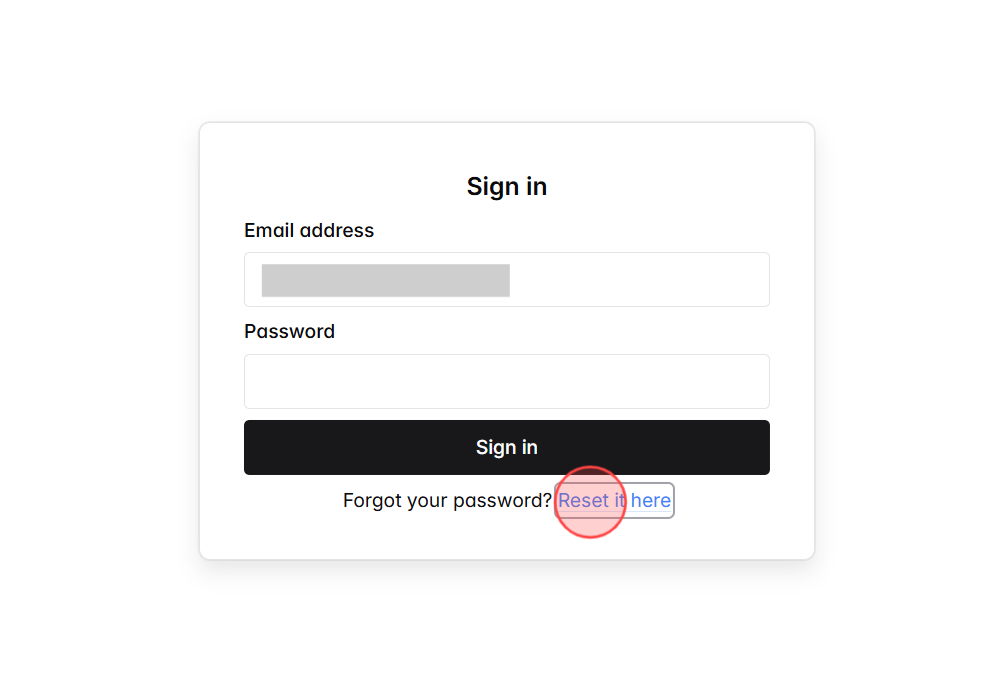
Screenshot for step 1
2
On the Reset Your Password screen, enter the email address linked to your account to receive password reset instructions.
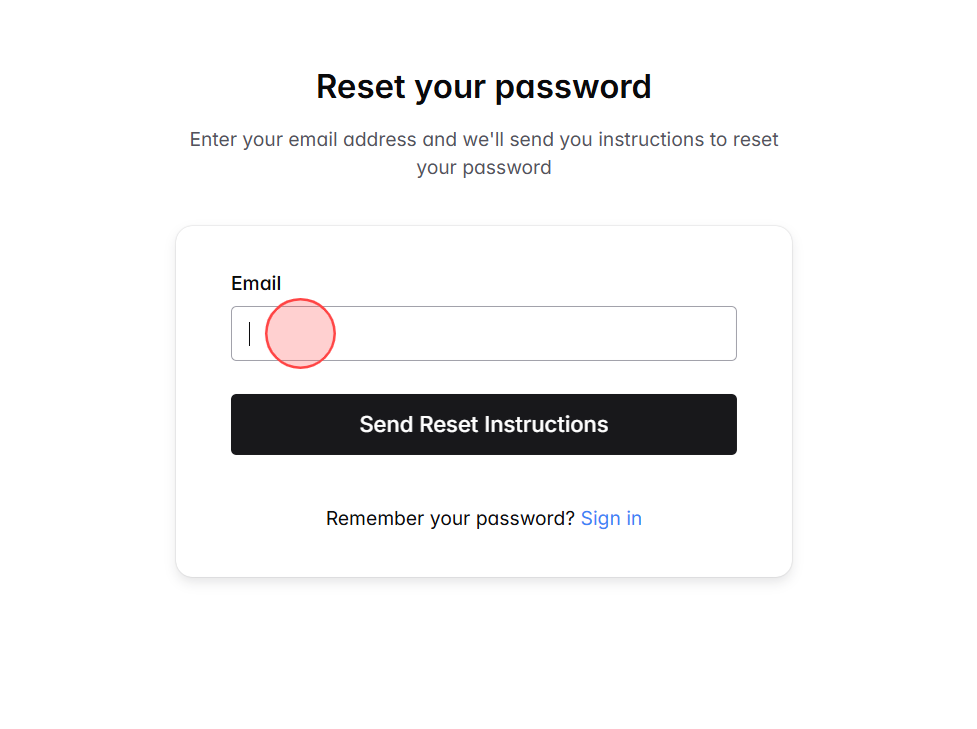
Screenshot for step 2
3
After entering your email, click Send Reset Instructions.
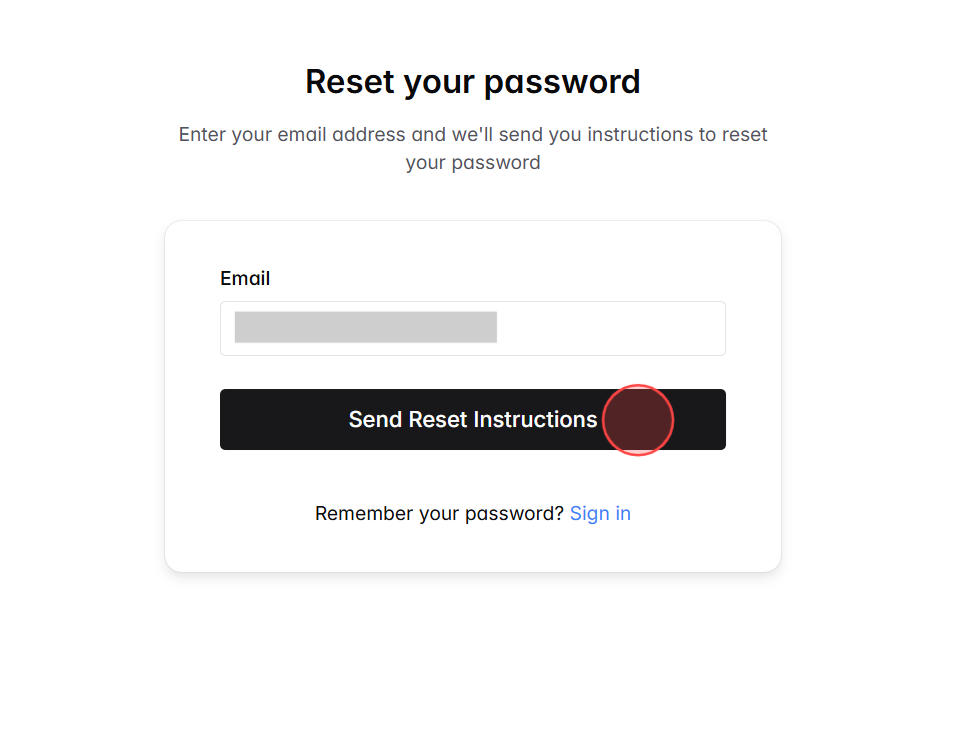
Screenshot for step 3
4
A confirmation message will appear, informing you that if the account exists, password reset instructions have been sent.
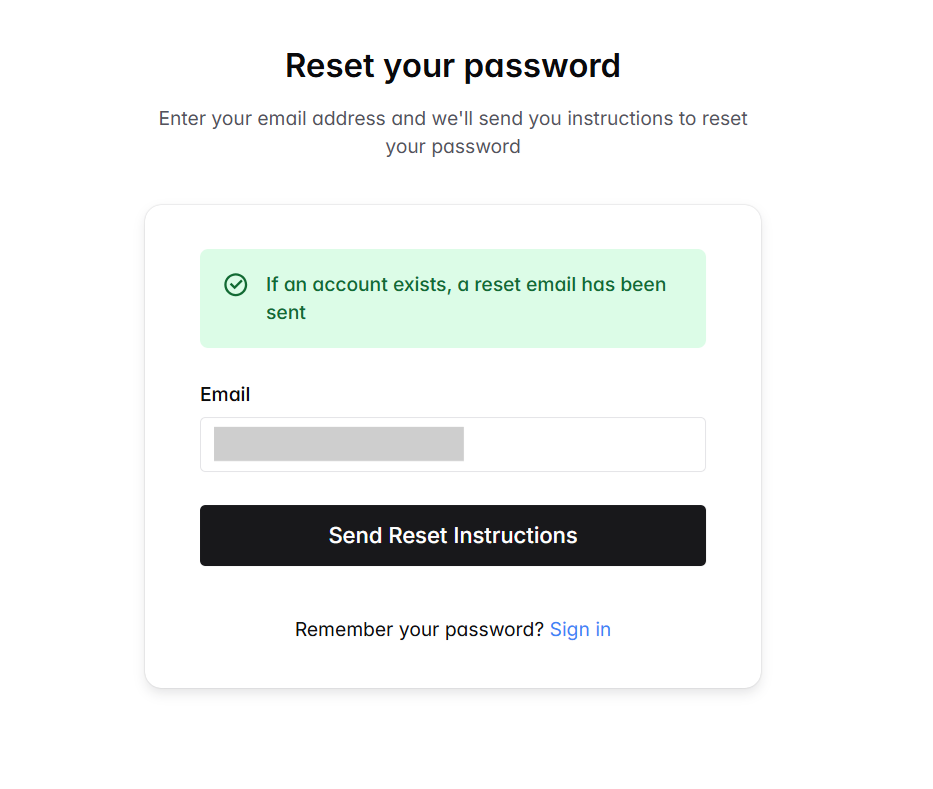
Screenshot for step 4
5
Go to your inbox and check for an email from Ourdemy titled Reset Your Password, then open it to access the reset link.
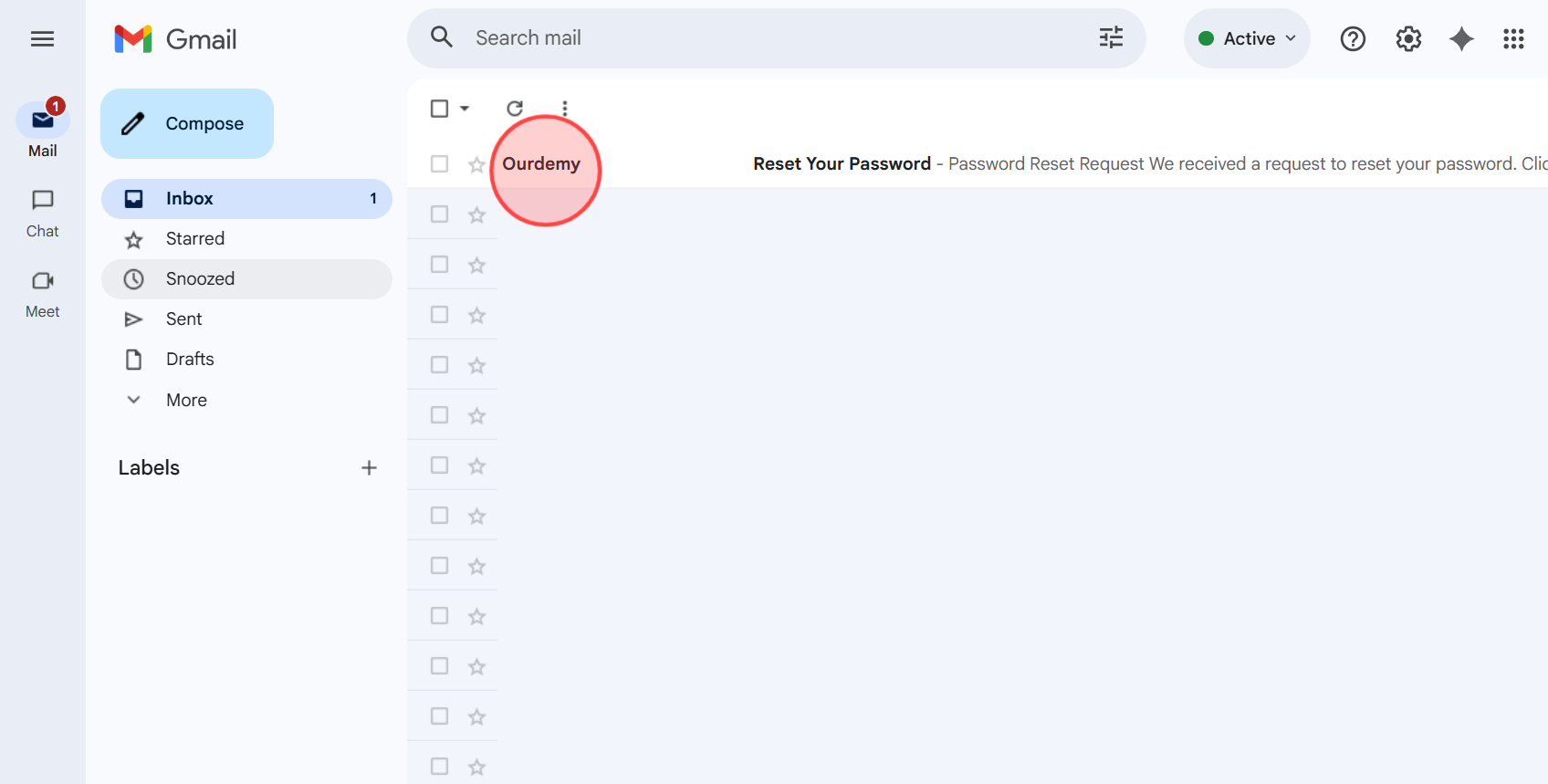
Screenshot for step 5
6
In the email, click the Reset Password button to open the password reset page and create a new password. Note: The reset link is valid for 1 hour only, so make sure to complete the process promptly.
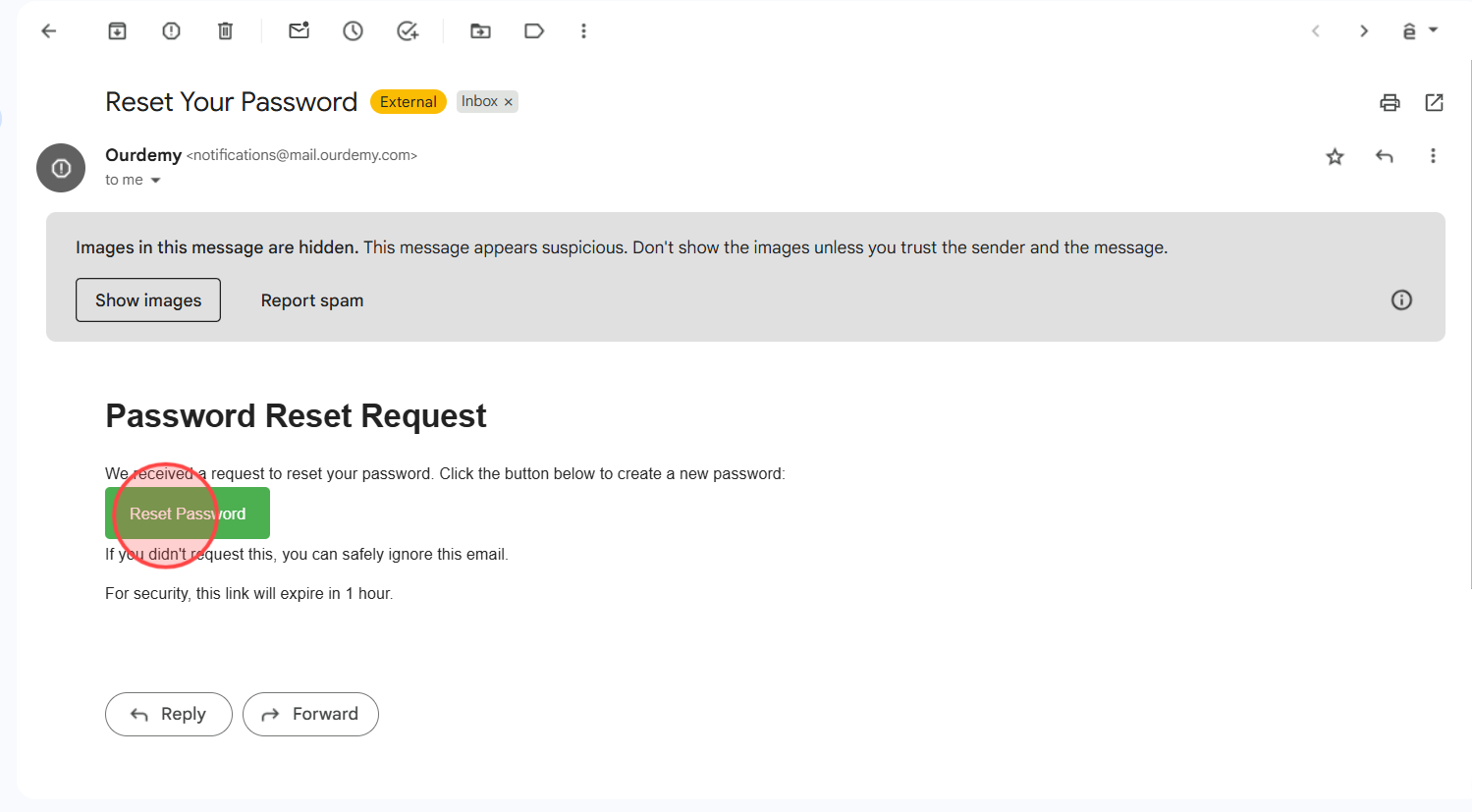
Screenshot for step 6
7
In the Reset Your Password form: – Enter your new password in the New Password field. – Type it again in the Confirm New Password field to confirm. – Make sure both passwords match and are at least 8 characters long.
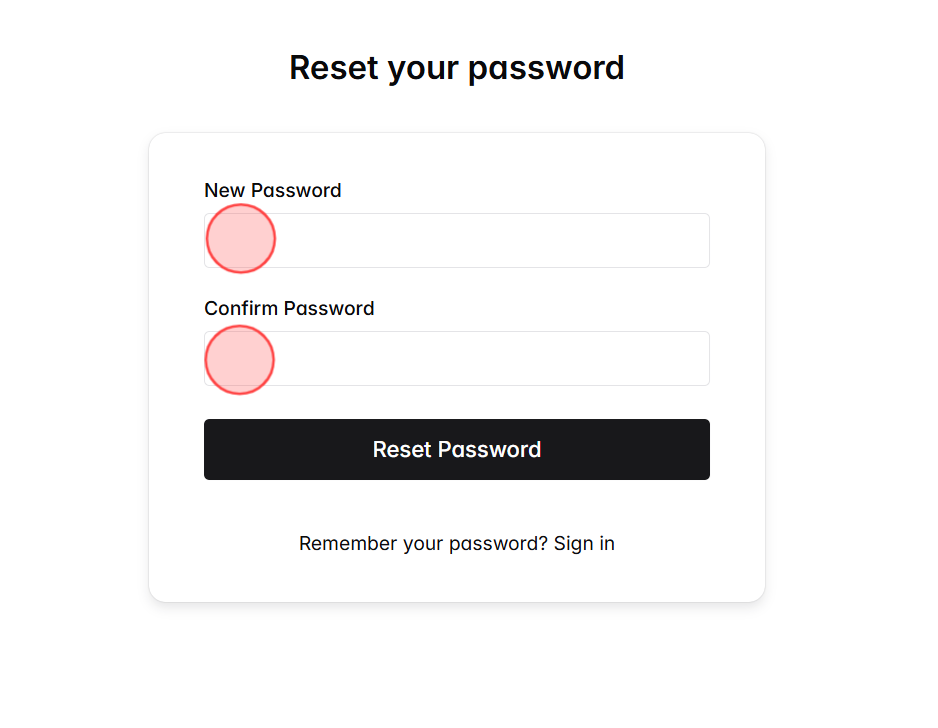
Screenshot for step 7
8
Once you’ve filled in both fields, click Reset Password to confirm your update.
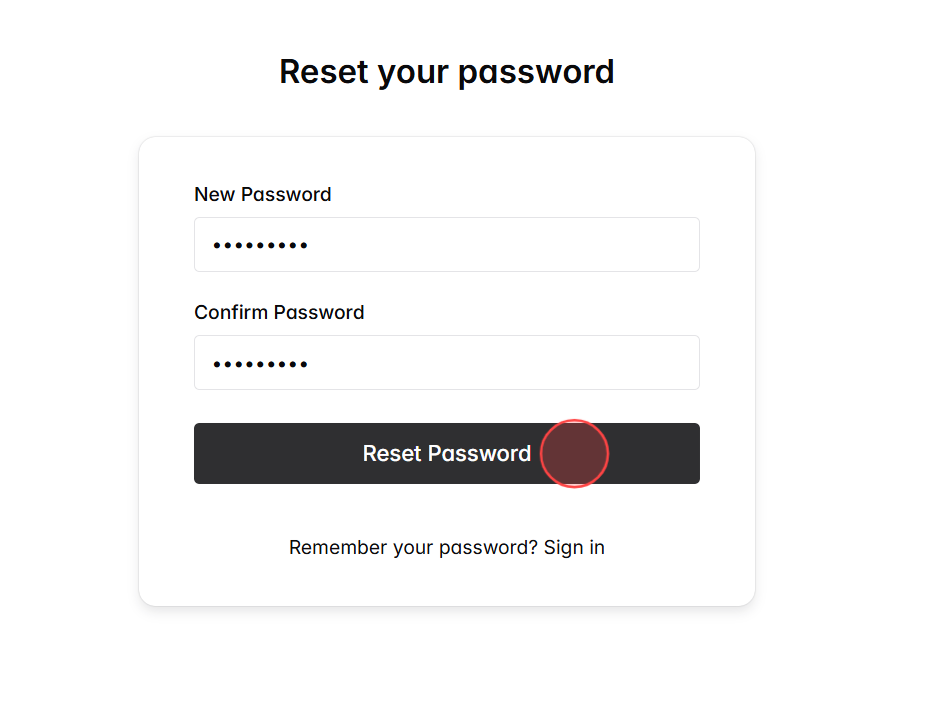
Screenshot for step 8
9
You’ll be redirected back to the Sign In page. Enter your email address and the new password, then click Sign In to access your account.
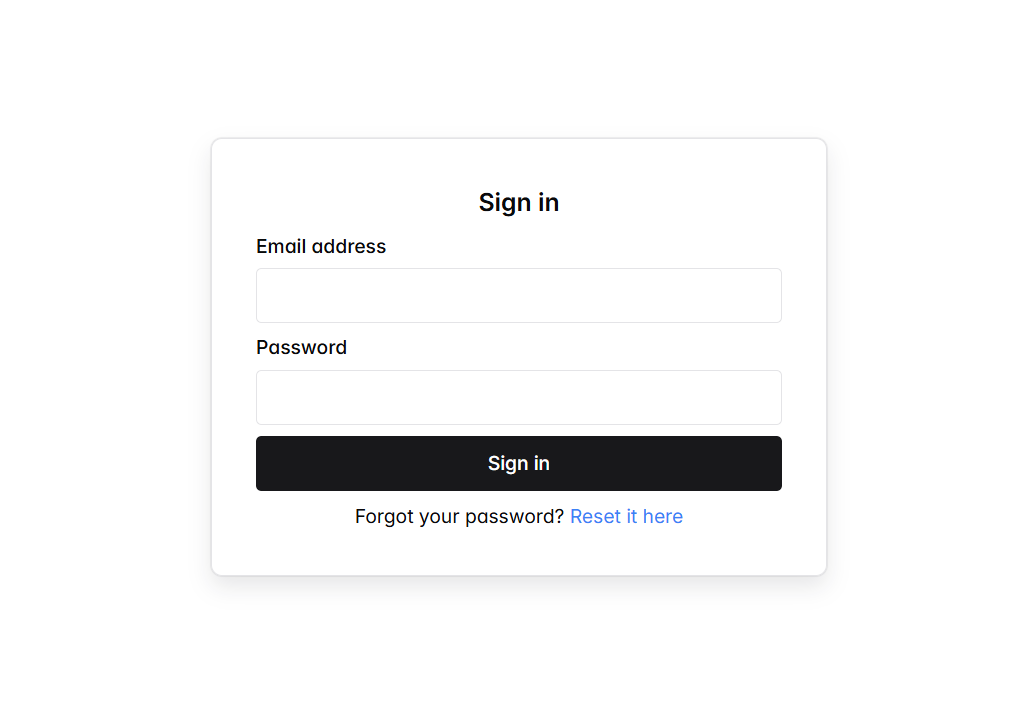
Screenshot for step 9

Search

Categories

  • Blog (61)
  • Customize Your Site (36)
  • Getting Started (13)
  • Help Center (101)
  • Manage Coaching (11)
  • Manage Coaching Service (18)
  • Manage Downloadable Products (4)
  • Manage Learning Content (18)
  • Manage Your Account (5)
  • Manage your students (6)
  • Manage Your Teachers (2)
  • Uncategorized (1)
  • サイトのカスタマイズ (1)

Recent posts

  • How can I customize my academy URL?
  • CSV opened in Excel – all data in one column, how to fix?
  • Can I export student or sale data from the system to my device?

Make your own online academy.

Links
  • 特定商取引法に基づく表⽰
  • Blog
  • Help center
  • Contact Us
Get in touch
  • [email protected]
Edit Content

© 2026 Ourdemy. All Rights Reserved.

  • Terms & Conditions
  • Privacy Policy
en_USEnglish
ja日本語 en_USEnglish